
Step-by-step guide

How to Remove a Watermark from a Video (Free & Without Blur)

Upload your video

Drag & drop a file here, or click to browse

Videos are processed securely and never shared

MP4, MOV, AVI, MKV, WebM · Up to 2GB

See the difference

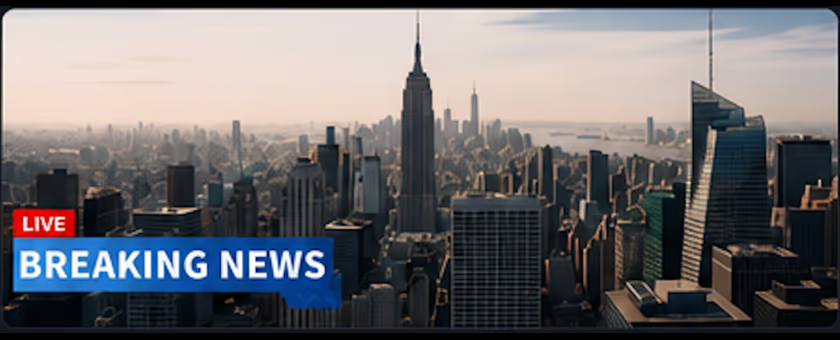
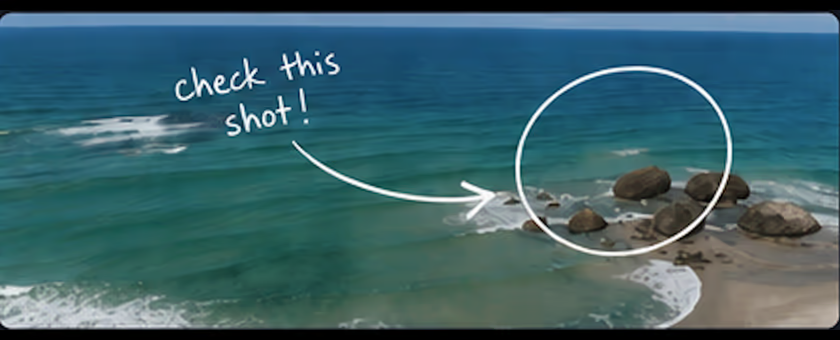
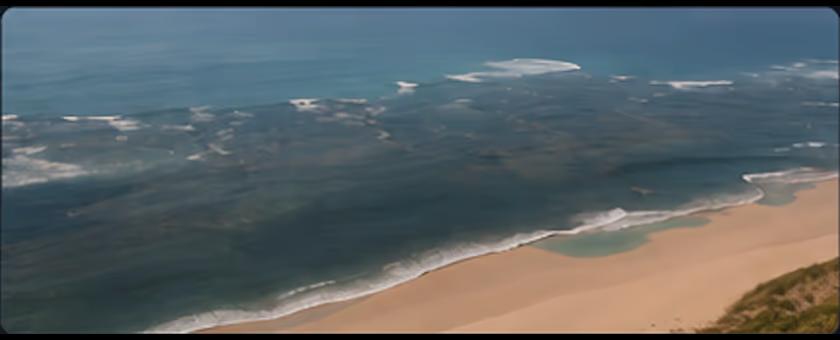
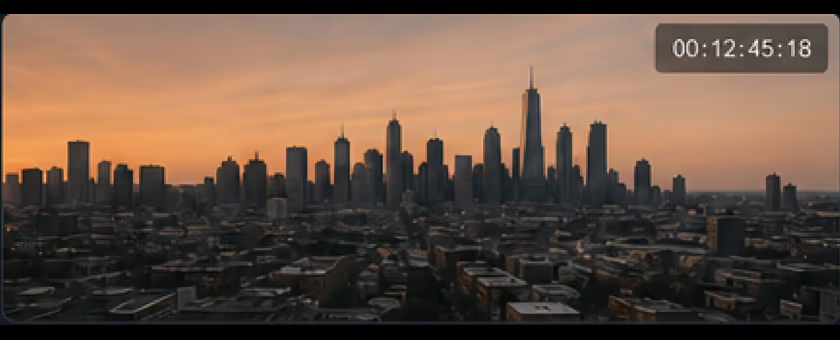
BeforeVideo with watermark overlay before AI removal - UnmarkAI
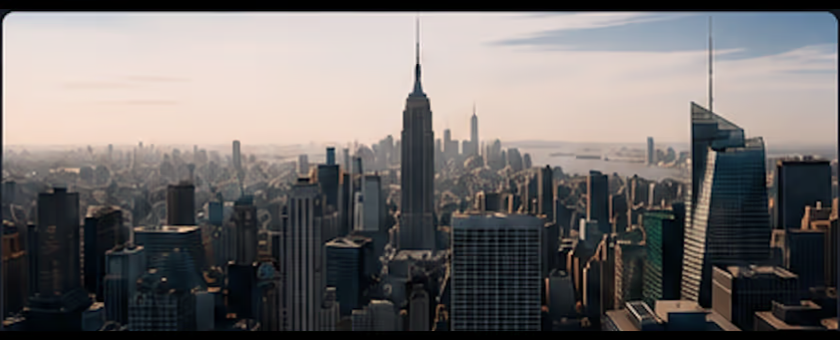
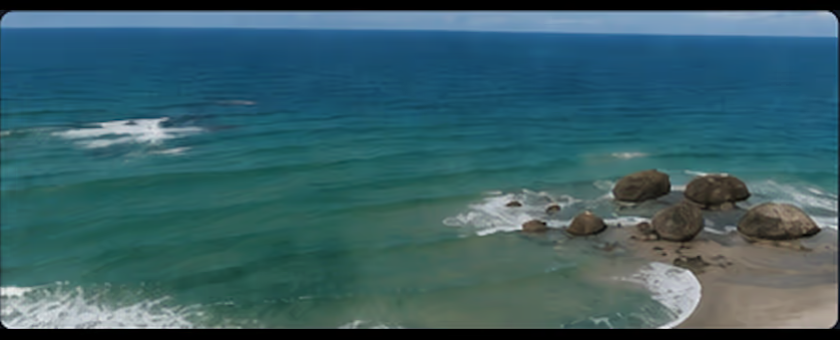
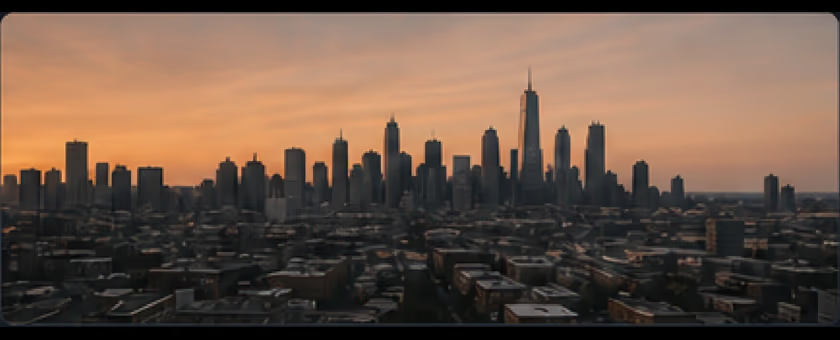
AfterClean video after AI watermark removal, no blur or crop - UnmarkAI

To remove a watermark from a video for free, upload a clip you own, select the logo or mark, let AI inpainting rebuild the hidden background, then preview and download the clean result without blur.

This guide covers social media logos from TikTok and YouTube, AI generator watermarks from Veo and Gemini, hardcoded subtitles, timestamps, and other visible marks that can be cleaned online.

What types of visible video watermarks can AI remove?

AI can remove visible watermarks that are already part of the video frame, including fixed corner logos, channel bugs, hardcoded subtitles, date stamps, timestamps, draft labels, review notes, and other small text or branding overlays. The cleanest results come from authorized videos where the mark stays in a predictable area and the background has enough texture for AI inpainting to reconstruct it without cropping or blur.

When is removing a video watermark allowed?

Removing a video watermark is appropriate when you own the footage, have a license that allows edits, are preparing an internal asset, or have written approval from the client or rights holder. Do not use watermark removal to strip attribution, hide ownership, or republish third-party content without permission.

What is a video watermark?

A video watermark is any logo, text overlay, timestamp, subtitle, bug, or branding layer burned into the visible frame. Some are static in one corner, while others stretch across the lower third or appear as draft labels during review cycles.

Corner Logos and Channel Bugs

Fixed logos, bugs, and small visible marks that sit in a stable corner of the frame.

Text Overlays and Brand Labels

Burned-in labels, campaign text, and branding strips that were exported into the video pixels.

Hardcoded Subtitles and Captions

Subtitle or caption lines that cannot be switched off because they are part of the visible frame.

Date Stamps and Review Notes

Timestamps, draft labels, approval notes, and temporary delivery marks from authorized footage.

How to remove watermarks from videos for free

Upload the video, mark the watermark area, let AI reconstruct the covered pixels, then preview and download the cleaned result. For videos you own or have permission to edit, this avoids cropping and avoids the blurry patch left by traditional tools.

01

Upload the source video

Start with footage you own, licensed media you are allowed to edit, or a client deliverable with written approval. A higher-quality upload gives the AI more detail to reconstruct the cleaned area accurately.

02

Choose full-frame or selected-area cleanup

Use a tight box selection when the watermark, logo, subtitle, or timestamp stays in a fixed region. Use full-frame cleanup only when multiple overlays appear across the frame or the artifact shifts slightly between shots.

03

Preview the result before download

Compare the cleaned clip against the original, especially around motion edges, textured backgrounds, and any scene where the removed overlay covered faces, product labels, or fine detail.

4 watermark types AI removes cleanly

AI inpainting performs best when the unwanted overlay is stable, the selected area is tight, and the background supplies enough texture to reconstruct hidden pixels without visible seams.

  • Corner logosA fixed logo in one corner is the easiest pattern for AI watermark removal without blur.
  • Static overlaysPersistent graphics, subtitles, or branded text bars are strong candidates for online cleanup.
  • Hardcoded subtitlesBurned-in captions can be removed when they stay in a predictable lower-third region.
  • Draft markersTemporary edit labels, timestamps, or client notes are easy to erase before delivery.
Ready for a cleaner clip?AI-powered, no blur, no quality drop.
Start free

Corner logos

Remove corner logos without a trace.

BeforeCorner logos - before
AfterCorner logos - after

Static overlays

Clean up persistent graphics and text.

BeforeStatic overlays - before
AfterStatic overlays - after

Hardcoded subtitles

Remove burned-in subtitles from video.

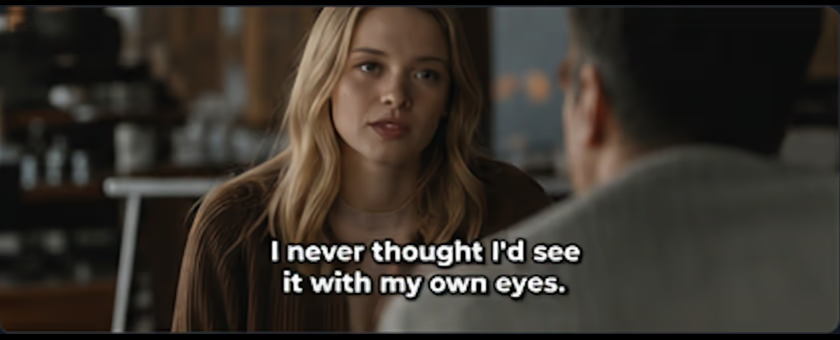
BeforeHardcoded subtitles - before
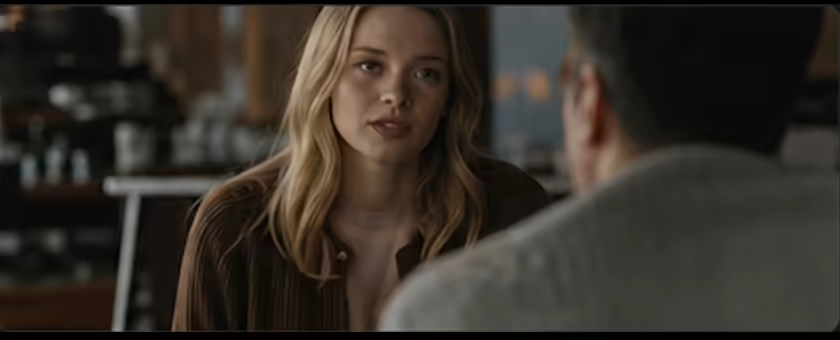
AfterHardcoded subtitles - after

Creator drafts

Erase temporary text and markers.

BeforeCreator drafts - before
AfterCreator drafts - after

Owned footage

Your original video content

BeforeOwned footage - before
AfterOwned footage - after

Licensed assets

Stock footage and media

BeforeLicensed assets - before
AfterLicensed assets - after

Internal videos

For team or company use only

BeforeInternal videos - before
AfterInternal videos - after

Client-approved edits

Final versions for client delivery

BeforeClient-approved edits - before
AfterClient-approved edits - after

Authorized use cases only

Video watermark removal is legitimate when you are cleaning your own footage, a licensed asset, or an approved client deliverable. It is not a loophole for stripping attribution from third-party content.

  • Original footageVideos you shot or produced yourself, where you fully control the editing rights.
  • Licensed stockStock media with a valid license that allows derivative edits and final export cleanup.
  • Internal useTraining videos, demos, and internal presentations prepared for your own team.
  • Client deliverablesFinal edits where the client approved the cleanup scope before publishing.
Ready for a cleaner clip?AI-powered, no blur, no quality drop.
Start free

Supported formats

UnmarkAI works with MP4, MOV, AVI, and WebM source files, covering the most common export formats used for social content, marketing clips, tutorials, and internal video assets.

Common Video Formats

MP4, MOV, AVI, and WebM uploads are supported for guides, demos, social clips, and internal assets.

High-Bitrate Sources

Sharper source files give AI more detail to rebuild the background behind the watermark.

Resolution Preservation

The workflow is designed to keep the original frame size whenever the source and cleanup area allow it.

Tight Box Selection

A focused selection helps reduce unnecessary processing, blur, and quality loss around the cleaned area.

Platform guide: social media and AI generator watermarks

Different platforms add different visible marks. Use this guide to pick the right cleanup path for social media logos, YouTube exports, and AI-generated videos from Veo, Gemini, PixVerse, or Kling.

Original Creator Exports

Clean visible platform marks from your own TikTok, Shorts, Reels, or social video exports.

Review and Draft Copies

Remove YouTube review labels, Instagram draft text, or temporary marks before final delivery.

Visible AI Generator Marks

Clean authorized Veo, Gemini, PixVerse, or Kling exports when the mark is visible in the frame.

No Unnecessary Cropping

Use box selection to preserve products, faces, captions, and other frame details around the mark.

Removing Social Media Logos (TikTok, YouTube)

Use AI cleanup when you need to remove a watermark from YouTube video exports, TikTok drafts, Instagram Reels, or social clips you own. It works best when the logo or username mark stays in a predictable area.

Is it legal to remove watermarks?

Only remove watermarks from videos you own, license, or are explicitly authorized to edit. Stripping attribution or branding from third-party content may violate copyright, licensing terms, or platform rules.

Owned and Licensed Footage

Use watermark removal on videos you created or licensed when editing is allowed.

Written Client Approval

For client work, confirm the cleanup scope and final usage before removing any visible mark.

No Attribution Stripping

Do not remove marks from third-party content to hide authorship, ownership, or source context.

Platform Terms Review

Check marketplace licenses and platform rules before publishing an edited export.

Why AI watermark removal beats cropping and blurring

Cropping throws away usable frame area, and blurring leaves the edit visible. AI cleanup reconstructs the hidden background so you can remove watermarks from video without cropping away composition or leaving a soft patch where the logo used to be.

FeatureTraditional Blur ToolsUnmarkAI (AI Remover)
Video QualityLeaves a blurry patchNo blur, natural background
CostUsually paidFree to start online
SpeedSlow, manual editingFast, AI automated

Full Frame Preserved

AI cleanup avoids forced cropping on product shots, talking-head videos, and social framing.

Cleaner Than Blur

Inpainting rebuilds the hidden area instead of leaving a soft or mosaic patch over the old mark.

Strong for Stable Overlays

Fixed logos, subtitles, timestamps, and draft labels on textured backgrounds are ideal targets.

Delivery-Ready Workflow

AI automation is faster than manual masking when preparing short authorized clips for review or publishing.

Trust

Built for authorized video cleanup

UnmarkAI is designed for creators and teams working with content they own, license, or have permission to edit. The product copy, terms, and upload flow all reinforce that boundary.

Rights-aware workflow

Designed to help you clean videos you own, license, or are explicitly authorized to edit.

Preview before download

Check the AI reconstruction frame-by-frame before exporting the final clean video.

Secure processing

Your uploads and exports are processed securely and never shared with third parties.

Clear acceptable use policy

Strict guidelines against removing attributions from unauthorized third-party content.

Frequently asked questions

Practical answers for safe, high-quality cleanup workflows.

How do I remove watermarks from videos for free?

Upload a video you own or are authorized to edit, select the watermark area, and let UnmarkAI reconstruct the background with AI inpainting. You can preview the cleaned result before downloading.

Should I use full-frame or box select?

Use box select for a fixed watermark area. Use full-frame mode when artifacts are spread across the frame or appear in multiple fixed positions.

What types of watermarks does AI remove best?

AI cleanup works best on small, stable overlays such as corner logos, fixed text overlays, timestamps, and hardcoded subtitles. Large moving overlays over complex motion are harder to clean.

Does watermark removal work on 4K or high-resolution video?

Yes. Higher-resolution files may take longer to process, but UnmarkAI is designed to preserve the source resolution wherever possible.

Why does my cleaned video have a slight blur where the watermark was?

When the overlay covers fine detail or fast motion, the AI has less context to rebuild the exact pixels. A smaller selection and a cleaner source file usually improve the result.

Ready to clean your videos?

Join thousands of creators who use UnmarkAI to deliver distraction-free content.

Start for Free Now

Get 10 credits on sign up · No credit card required