
Can I remove the Veo watermark for free?
Yes. UnmarkAI offers a free way to test Veo watermark removal on a short clip so you can evaluate the quality before committing to larger tasks.
Does this remove the visible Veo logo or the invisible SynthID watermark?
This tool removes the visible "Veo" text and logo watermark that appears in the corner of AI-generated video frames. SynthID is Google's invisible, imperceptible watermark embedded in the pixel data — it is a separate technology and is not addressed by visible watermark removal.
How do I remove the Veo watermark from my video?
Upload your Veo-generated video to UnmarkAI. The AI detects the visible Veo logo in each frame, erases it using inpainting, and reconstructs the background. Preview the result side-by-side, then download the clean version.
Does removing the Veo watermark reduce video quality?
UnmarkAI uses AI inpainting to reconstruct the pixels behind the watermark rather than blurring or cropping. The result preserves the original resolution and composition wherever possible. Tight watermark areas and high-quality source files produce the cleanest results.
Does this work on Veo 3 and Veo 3.1 videos?
Yes. The visible watermark layout may differ slightly between Veo 2, Veo 3, and Veo 3.1 — the logo position, size, or transparency can change between versions — but the AI adapts to each layout automatically. Upload your video directly and the tool handles detection.
Is it legal to remove the Veo watermark from my own AI-generated video?
Yes. When you generate a video with your own Google Veo account, you have the right to edit and modify your AI-generated output. Removing the visible watermark from your own generations is a legitimate editing action, similar to color grading or adding transitions.
What is SynthID and does this tool remove it?
SynthID is Google's invisible watermarking technology embedded in AI-generated video data. It is imperceptible to the human eye and designed for AI content identification and provenance tracking. This tool addresses only the visible "Veo" logo watermark, not the SynthID data embedded in the pixel stream.
What is the difference between the visible Veo watermark and SynthID?
The visible Veo watermark is a text or logo overlay rendered in the corner of the video frame — you can see it during playback. SynthID is an invisible digital watermark embedded in the video pixel data by Google DeepMind — it cannot be seen and requires specialized detection. They serve different purposes: the visible logo identifies the generation tool, while SynthID enables automated AI content detection.
Does Google Veo add a watermark to every generated video?
Yes. Google Veo adds both a visible "Veo" logo watermark and an invisible SynthID watermark to every video it generates, regardless of whether you use the free tier or a paid Gemini subscription. The visible watermark appears in the bottom-right corner of the frame.
Can I use this on my phone?
Yes. UnmarkAI runs in the browser. The upload, process, preview, and download workflow works on both mobile and desktop without installing an app.
What video formats does UnmarkAI support?
UnmarkAI supports MP4, MOV, AVI, and WebM uploads. For best results with Veo videos, upload the highest-quality export available directly from the Veo platform without re-compressing.
How long does Veo watermark removal take?
Processing time depends on video length, resolution, and the size of the watermark area. Short Veo clips at 1080p typically process in a few minutes. Longer or higher-resolution files take proportionally more time.
Is my uploaded video kept private?
UnmarkAI processes uploads over a secure connection and does not share files with third parties. Files are retained only as needed to complete your task.
Can I process multiple Veo videos at once?
Yes. Each upload becomes a separate task in your queue. You can upload and process multiple Veo-generated videos in sequence without waiting for one to finish before starting the next.
Where does the Veo watermark appear in the video?
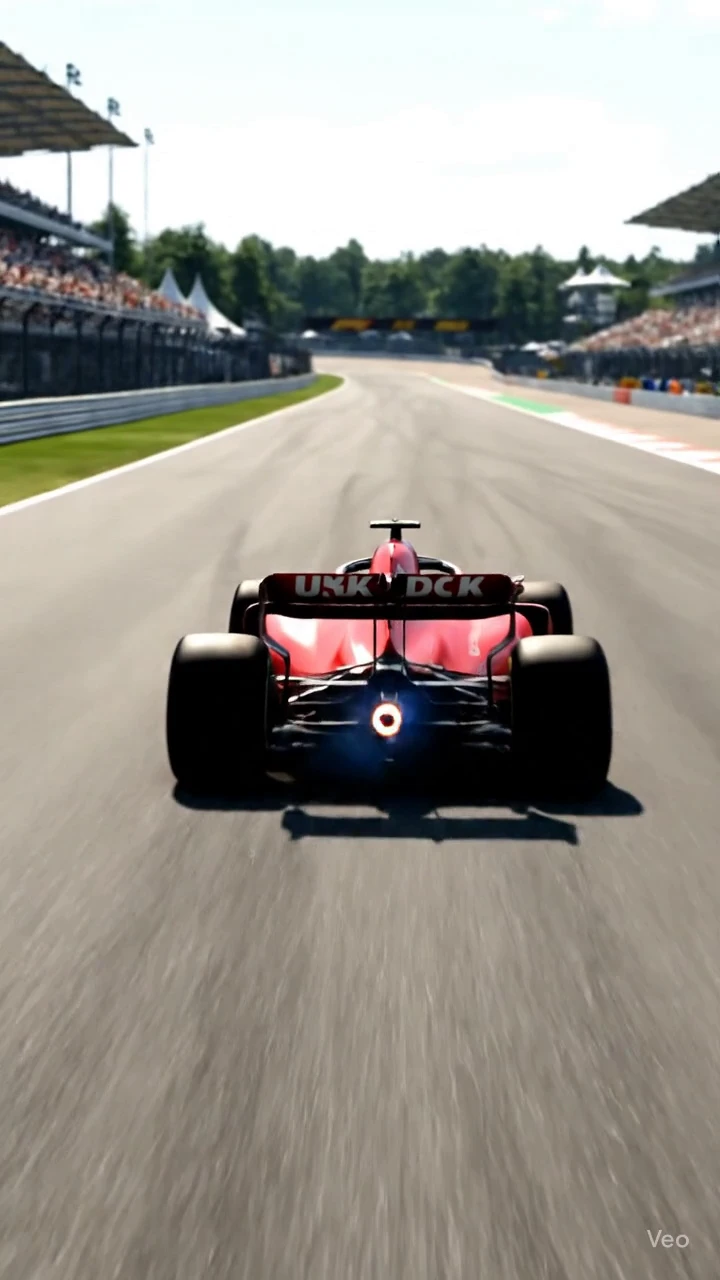
The visible Veo watermark typically appears in the bottom-right corner of the frame as a text or logo overlay. The exact position, size, and transparency may vary slightly between Veo versions (Veo 2, Veo 3, Veo 3.1), but it remains in a fixed location throughout the video.