Free AI PixVerse Watermark Remover

Free PixVerse Watermark Remover Online — No Blur

Upload your video

Drag & drop a file here, or click to browse

Videos are processed securely and never shared

MP4, MOV, AVI, MKV, WebM • Up to 2GB

See the difference →

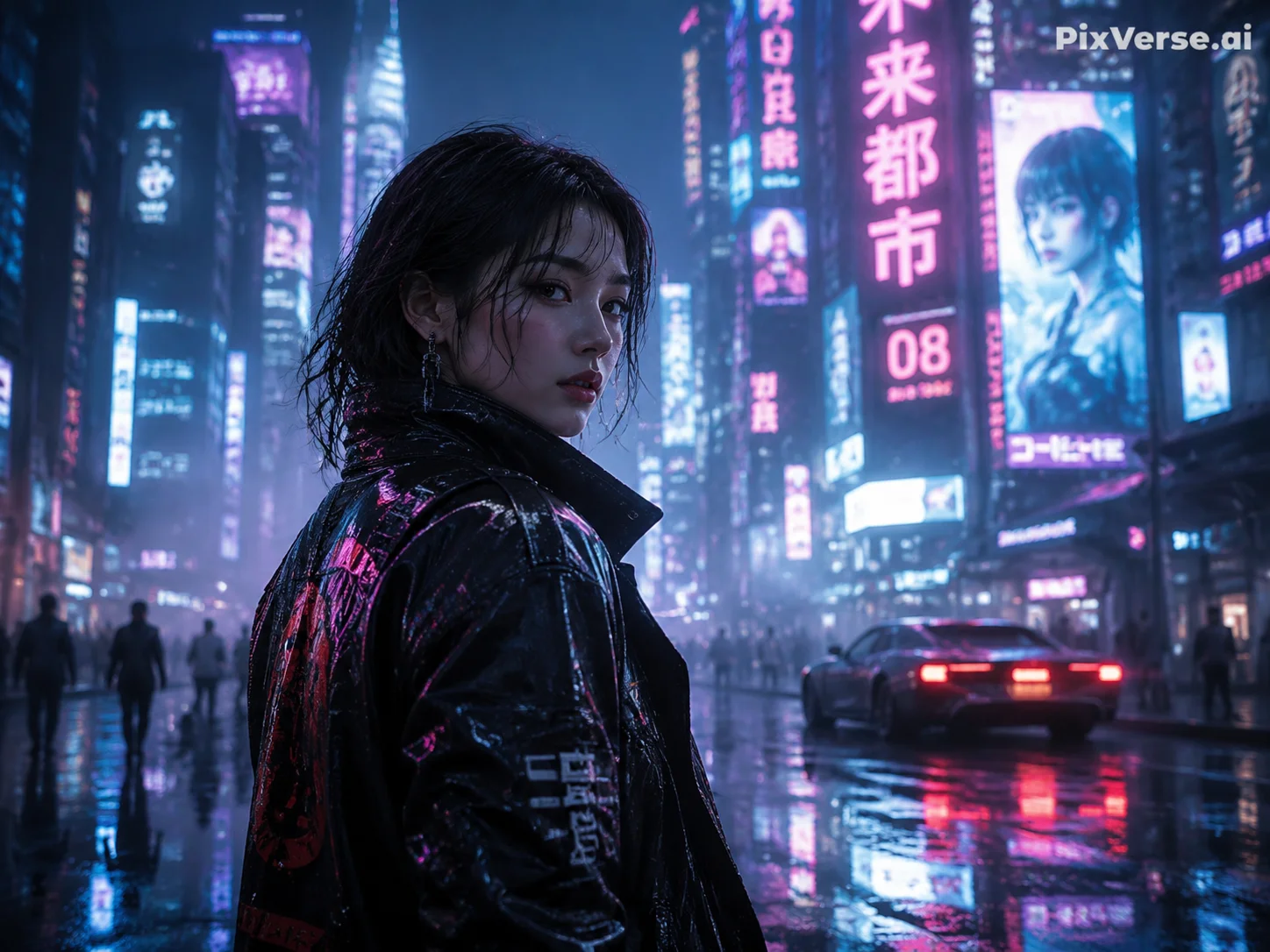
BeforePixVerse AI video with PixVerse.ai watermark in top-right corner before AI removal - UnmarkAI
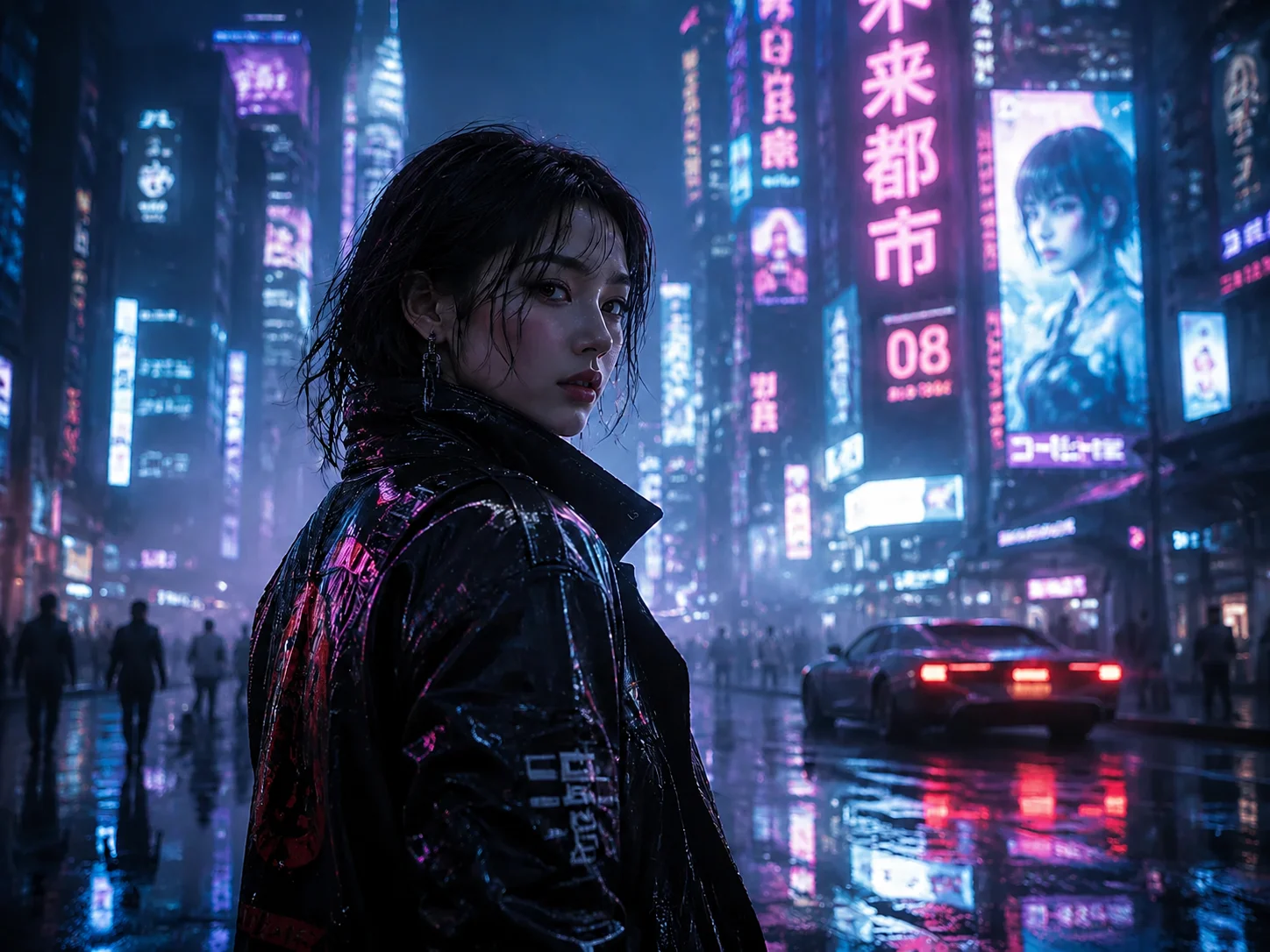
AfterClean PixVerse-generated video after AI watermark removal, background fully restored - UnmarkAI

Remove the PixVerse logo and text watermark from AI videos you own or are authorized to edit. AI detects and erases the watermark frame by frame, keeping your original resolution and framing intact.

UnmarkAI is an online PixVerse watermark remover powered by AI inpainting — no blur, no cropping, no desktop app. Upload your video, let AI find the watermark, then preview and download a clean export.

What the PixVerse watermark looks like

PixVerse AI adds a small watermark to videos generated on its free and lower-tier plans. Understanding exactly what you are removing helps set accurate expectations for the result.

  • The PixVerse watermark is a semi-transparent white "PixVerse.ai" text placed in the top-right corner of the video frame. It is rendered directly into the pixel data — not a separate overlay track.
  • Free-tier PixVerse videos include the watermark and are capped at 720p resolution. Paid plans (starting at $10/month) remove the watermark and unlock higher resolutions.
  • Because the watermark is semi-transparent, the underlying scene is partially visible through it. AI inpainting uses that partial information to reconstruct a clean background.
  • The watermark stays fixed in the top-right corner — it does not bounce or move. This makes it easier for AI to track and remove compared to animated watermarks like TikTok's.

How to remove the PixVerse watermark from your video

Upload a PixVerse-generated video you own, let AI detect the corner logo and text watermark, then preview and download the clean export at original resolution.

01

Upload your PixVerse video

Upload a video generated by PixVerse AI that you own or are authorized to edit. Supported formats include MP4, MOV, AVI, and WebM. Use the highest-quality source file for the cleanest result — free-tier PixVerse exports are capped at 720p, so start from the best version available.

02

AI detects and removes the watermark

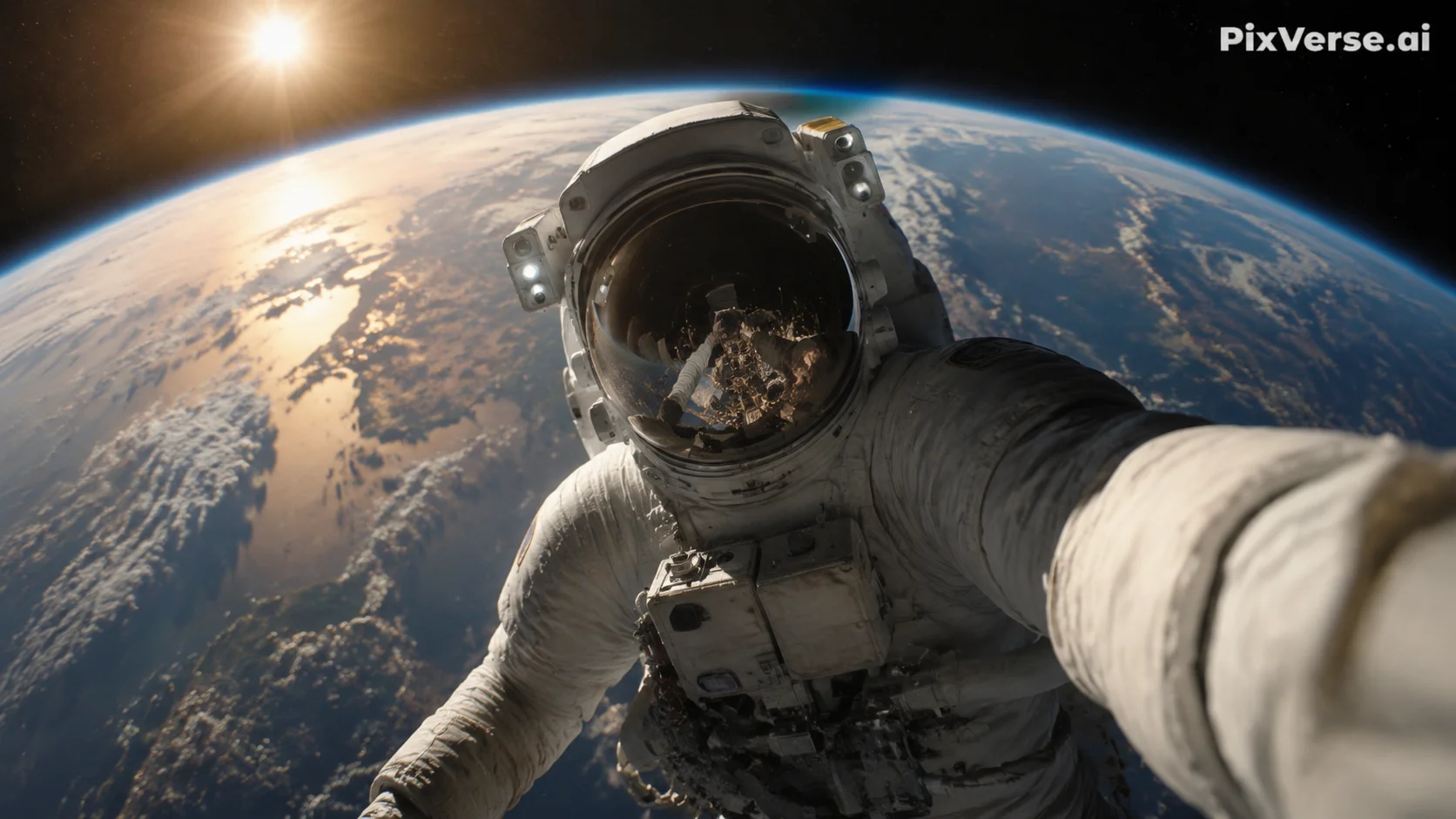
UnmarkAI scans every frame to locate the PixVerse.ai watermark — typically a white semi-transparent text in the top-right corner. AI inpainting erases the watermark pixels and reconstructs the original background behind it, matching texture, color, and detail.

03

Preview and download

Preview the result side-by-side to confirm the watermark is fully gone. Download the clean export at your original resolution — no blur patches, no cropped edges, no quality loss.

PixVerse watermark removal results

See how AI inpainting removes the PixVerse.ai corner watermark without cropping the frame or leaving blur artifacts. The original background is reconstructed pixel by pixel.

  • No blur or smudgeAI reconstructs the background behind the watermark instead of covering it with a blurred patch.
  • Full frame preservedThe entire video frame stays intact at original resolution — nothing is cropped away.
  • Handles semi-transparent logosThe PixVerse watermark is semi-transparent, blending with the scene underneath. AI inpainting accounts for that blend when restoring the area.
BeforeCinematic AI clip - before
AfterCinematic AI clip - after
Ready for a cleaner clip?AI-powered, no blur, no quality drop.
Start free
BeforeVertical creator clip - before
AfterVertical creator clip - after
Ready for a cleaner clip?AI-powered, no blur, no quality drop.
Start free

Authorized use only

This tool is designed for creators working with content they have legitimate rights to edit. Do not remove watermarks from videos you do not own or are not authorized to modify.

  • Your own AI generationsVideos you generated yourself using PixVerse AI, where you control the content and editing rights.
  • Licensed contentFootage obtained under a license that permits derivative editing, including watermark removal.
  • Social media repurposingReusing your own PixVerse-generated clips across TikTok, Instagram Reels, or YouTube Shorts without the platform watermark.
  • Educational and review useRemoving watermarks for commentary, reviews, or academic analysis of AI-generated video tools, with proper attribution.

Supported video formats

UnmarkAI processes all major video formats that PixVerse exports. Upload the highest-quality source file available for the best removal results.

  • Video formats: MP4, MOV, AVI, WebM, and MKV — all common container types supported.
  • PixVerse typically exports MP4 files, which are the recommended input format.
  • Resolution: best results at 720p and above. Higher-resolution uploads give the AI more pixel data for background reconstruction.
  • Duration: short clips (5–15 seconds, typical PixVerse output) process fastest. Longer videos are supported but take proportionally more time.

Remove PixVerse watermark online — no Chrome extension needed

Some third-party browser extensions claim to download PixVerse videos without watermarks, but they often require paid license keys, may violate PixVerse's terms of service, and cannot handle videos you have already exported. UnmarkAI works differently: you upload the video file you already have, and AI removes the watermark from the pixel data.

  • Browser-based: open UnmarkAI in any modern browser — Chrome, Safari, Firefox, Edge. No extension, plugin, or desktop software required.
  • Works on already-exported videos: if you already downloaded a watermarked PixVerse clip, upload it directly. No need to regenerate the video.
  • Mobile-friendly: the upload, select, preview, and download workflow works on phones and tablets as well as desktop.
  • No account required to try: upload a short clip and preview the result before committing to a paid plan.

Is it legal to remove PixVerse watermarks?

Removing watermarks is legal when you own the content, have licensing rights, or the platform's terms of service allow it. PixVerse grants commercial usage rights on paid plans, and many creators remove watermarks from their own generations for cross-platform publishing.

  • Videos you generated yourself: you created the content using your own PixVerse account and prompts, giving you a legitimate interest in editing the output.
  • Licensed or authorized content: where the license or permission explicitly permits derivative edits, including watermark removal.
  • Cross-platform republishing: removing the PixVerse watermark from your own AI-generated clips to publish them on TikTok, YouTube, or Instagram without third-party branding.
  • Do not remove watermarks from videos you do not own or are not authorized to edit. Doing so may violate copyright law and PixVerse's terms of service.

Why AI watermark removal beats cropping and blurring

Traditional workarounds like cropping, blurring, or covering the watermark area are quick but leave visible artifacts that degrade the final video. AI inpainting removes the watermark and reconstructs the original background so the result looks like the watermark was never there.

  • AI inpainting: removes the PixVerse.ai text and fills in the area with matching background detail — texture, color, and lighting are all reconstructed.
  • Cropping: cuts away the top-right portion of the frame where the PixVerse watermark sits, changing the aspect ratio and potentially cutting off visual elements near the edge.
  • Blurring: leaves a visible smudged patch in the top-right corner — immediately noticeable and unprofessional, especially on dark or gradient backgrounds.
  • Manual masking: requires frame-by-frame editing in tools like After Effects or Premiere Pro — time-consuming and often inconsistent for semi-transparent watermarks.
Trust

Built for authorized video cleanup

UnmarkAI is designed for creators and teams working with content they own, license, or have permission to edit. The product copy, terms, and upload flow all reinforce that boundary.

Rights-aware workflowPreview before downloadSecure processingClear acceptable use policy

Frequently asked questions

Practical answers for safe, high-quality cleanup workflows.

How do I remove the PixVerse watermark from my video?

Upload your PixVerse-generated video to UnmarkAI, let the AI detect the PixVerse.ai watermark in the top-right corner, then preview and download the clean version. The entire process runs in your browser — no app installation required.

What does the PixVerse watermark look like?

The PixVerse watermark is a semi-transparent white "PixVerse.ai" text positioned in the top-right corner of the video frame. It is rendered directly into the pixel data on free-tier exports and removed automatically on paid PixVerse plans.

Does PixVerse watermark all AI-generated videos?

PixVerse adds the watermark to free-tier (Basic plan) video exports. Paid plans (Standard and above) produce watermark-free videos and unlock higher resolutions. Check the PixVerse pricing page for current plan details.

Is it better to remove the watermark or upgrade my PixVerse plan?

Upgrading your PixVerse plan removes the watermark at the source and unlocks higher resolutions, which is ideal if you generate videos frequently. AI watermark removal is useful when you already have exported clips with watermarks, want to clean up older generations, or prefer not to upgrade for occasional use.

Can I download PixVerse videos without a watermark?

PixVerse videos can be exported without a watermark on any paid plan (Standard and above). If you already have a watermarked export, you can use UnmarkAI to remove the watermark from the existing file — no need to regenerate the video.

Ready to clean your videos?

Join thousands of creators who use UnmarkAI to deliver distraction-free content.

Start for Free Now

🎁 Get 10 credits on sign up · No credit card required