Secure processing — temporary retention follows your plan and task status
MP4, MOV, AVI, MKV, WebM · Up to 2GB
Start Now
See the difference →
Before
After
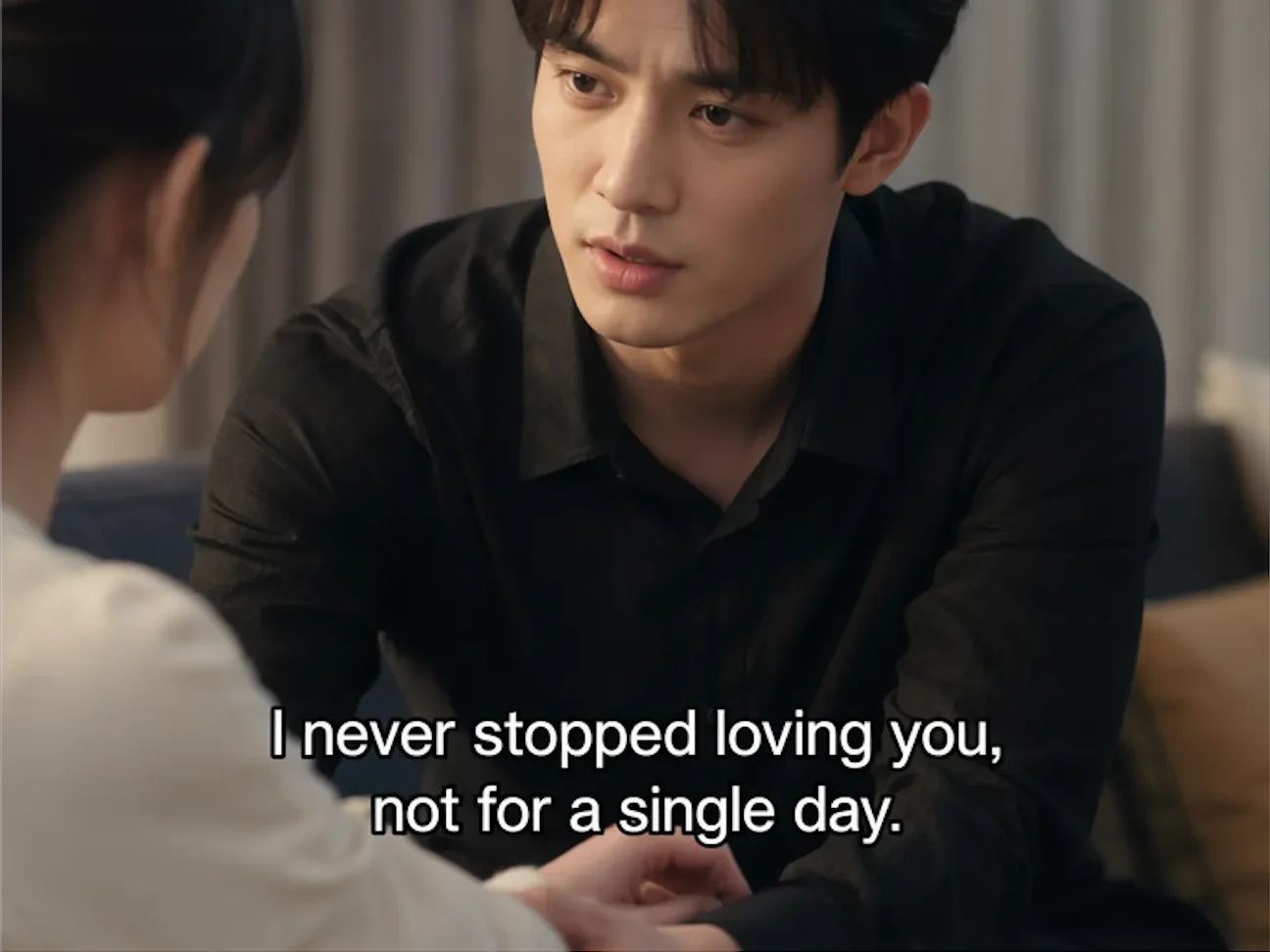
Remove hardcoded captions and other fixed text from video you are authorized to edit. UnmarkAI reconstructs the selected region without changing the frame dimensions or covering the words with a blur patch.
First check whether the words are burned into the pixels or stored in a subtitle track. Burned-in text can use one box, up to three non-overlapping boxes, or full-frame processing; removable SRT or VTT tracks do not need AI reconstruction.
Compare two-line word-highlight captions, product copy and vertical creator overlays. Each 12-second comparison keeps the input and actual API output synchronized.
Before → API result12 s
01 / 03
Tutorial captions
Clear instructional captions before translating or updating a tutorial.
Clip length
12 s
Source size
1280 × 720
Recorded API charge
$0.045
Processing
101.9 s
What to inspectCompare the lower caption band during all caption pages and active-word changes; inspect grain and sawdust in motion.
LimitsFine moving wood texture can soften inside the repaired band.
Upload your video to the text remover, select the burned-in words and run AI reconstruction. Use one region for a fixed caption band, multiple regions for separated text, or full-frame removal when overlays change positions. Compare the complete result before downloading.
Can I remove two-line, word-highlight captions from a video?
Yes, burned-in two-line captions with an active-word highlight can be processed like other video text. Cover the entire animated word area, including both lines, the active word’s bounce and outline. The 12-second tutorial and vertical creator examples below show actual API results. Check every word change for remnants and flicker; separate subtitle tracks should be removed directly.
Decide whether the text needs pixel reconstruction
Hardcoded captions are encoded into the picture. SRT, VTT, and other switchable subtitle tracks are separate data and should be removed or replaced without reconstructing the video.
Turn subtitles off first
If the words disappear in the player, edit the subtitle track instead of spending points on video cleanup.
Use a box for stable text
A fixed caption band, timestamp, or lower third usually needs only a tight region around its letters, outline, and shadow.
Treat moving text as a harder case
Animated words, scene cuts, and text crossing faces or fine detail require closer full-clip review.
How to remove hardcoded text from a video
Confirm that the words are part of the picture, work from the best authorized source available, and review the complete result before publishing.
01
Confirm the text is hardcoded
Turn subtitles off in the player. If the words disappear, remove or replace the subtitle track; if they remain, they are part of the video pixels.
02
Upload the best source available
Use an owned, licensed, or explicitly authorized source with as little prior compression as possible. More real source detail gives reconstruction a stronger reference.
03
Select, process, and compare
Choose the smallest suitable scope, check the point estimate, then compare the complete preview with the source before downloading.
For developers and teams
Automate video text removal
The public API supports signed uploads, full-frame, selected-area or multi-region jobs, cost estimates, safe retries, polling, and signed webhooks.
Text removal is most useful when it unlocks a specific revision. Keep required notices and ownership marks, and remove only the copy approved for replacement.
Replace burned-in captionsClean an old caption band before adding corrected or translated subtitles.
Refresh campaign copyUpdate an expired offer, product label, lower third, or approved sponsor line when the source project is unavailable.
Clean owned screen recordingsRemove temporary meeting labels, timers, notifications, or review notes from recordings you control.
The web uploader accepts MP4, MOV, AVI, MKV, and WebM files up to 2 GB. Text size, styling, motion, compression, selection accuracy, and the amount of hidden background affect the result; the editor shows the point estimate before processing.
Where a clean source master saves re-editing
Use text removal when you have the right to revise a finished export but no longer have a clean project file or text layer.
Caption replacement and localization
Prepare a source master for corrected captions, a new language, or a different subtitle style.
Campaign and product revisions
Replace approved offer text, product names, speaker details, or lower thirds in owned marketing footage.
Screen-recording cleanup
Clear temporary UI labels, meeting timers, notifications, or internal review notes from recordings you made.
Choose the next cleanup workflow
Open the editor, focus on subtitles, compare methods, or step back to the broader cleanup guide.
A 10-second text-removal sample — and what it cannot prove
The player contains an archived side-by-side source and cleaned sample with burned-in Chinese captions, subject movement, and several shot changes. It is a visual review aid, not a controlled speed, cost, or quality benchmark.
BeforeAfter
10s1080 × 960H.264 · 24 fpsBefore / After
Recorded sample conditions
Conditions
10.0 seconds, 1080 × 960, H.264 at 24 fps, with dialogue captions near the lower frame, moving subjects, and several cuts.
Review method
Review the source on the left and the cleaned output on the right at the same playback position.
What to check
Inspect each caption entrance and exit, clothing texture behind the words, and the cut between speakers.
Limitations
One short archived sample cannot predict the result for a different codec, text style, motion pattern, or background.
Apply the same review to your upload
Conditions
Your file may contain larger text, heavier compression, camera movement, flashing light, faces, hands, or fine patterns.
Review method
Keep the selection as small as practical and compare the full interval before, during, and after the text appears.
What to check
Look for residue, smearing, repeated texture, soft edges, or a repaired area that moves differently from the scene.
Limitations
Hidden detail cannot always be reconstructed reliably; difficult clips may need a tighter selection, another pass, or manual editing.
Keep attribution and required notices out of the selection
Process only video you own, license, or have explicit permission to edit. Do not remove attribution, provenance, ownership marks, safety labels, evidence, or legally required notices.
Confirm the editing right
Check the production agreement, asset license, or written client approval before upload.
Define the approved text
Limit the selection to copy that is outdated, temporary, incorrect, or specifically approved for replacement.
Retain the original source
Keep an untouched master and the edit brief so the change can be reviewed or reversed later.
Inpainting, cropping, and blur solve different problems
Cropping changes the composition, while blur or mosaic leaves a visible patch. Inpainting attempts to reconstruct the selected pixels, but the result still needs review because hidden detail cannot always be recovered reliably.
Method
What changes
Best fit
Main limitation
AI inpainting
Selected pixels are reconstructed
A bounded text region with usable surrounding detail
Motion and hidden detail can produce artifacts
Cropping
The frame is cut or reframed
Text already near an expendable edge
Removes surrounding image area
Blur or mosaic
The text is covered, not removed
Cases where concealment is acceptable
Leaves a visible treatment over the text
Trust
Built for authorized video cleanup
UnmarkAI is designed for creators and teams working with content they own, license, or have permission to edit. The product copy, terms, and upload flow all reinforce that boundary.
Rights-aware workflow
Designed to help you clean videos you own, license, or are explicitly authorized to edit.
Preview before download
Check the AI reconstruction frame-by-frame before exporting the final clean video.
Secure processing
Files are processed securely to provide the service. Read the Privacy Policy for retention and service-provider processing details.
Clear acceptable use policy
Strict guidelines against removing attributions from unauthorized third-party content.
Frequently asked questions
Practical answers for safe, high-quality cleanup workflows.
Can I remove text from a video without cropping it?
Often, yes. Box Select, Multi-Box, and Full Frame keep the existing frame dimensions while AI reconstructs the processed area. Review the full preview because motion, compression, and hidden detail affect the result.
Do I need AI to remove an SRT or VTT subtitle track?
No. If subtitles are stored as a separate SRT, VTT, or player track, disable or replace that track. AI cleanup is for words already burned into the video pixels.
What makes video text removal harder?
Fast motion, scene cuts, large text, heavy compression, flashing light, and text over faces or fine patterns leave less reliable background information. Use a tight selection and inspect the entire interval where the text appears.
What should I check before publishing the cleaned video?
Watch the full result at normal speed and scrub through every caption change and scene cut. Compare the selected area with the source for residue, flicker, repeated texture, soft edges, or changes near faces and objects.
What text should not be removed?
Keep attribution, provenance, ownership marks, safety labels, evidence, and legally required notices. Process only footage you own, license, or have explicit permission to edit.
Ready to prepare an authorized source master?
Choose a rights-aware cleanup or localization workflow for content you are authorized to edit.