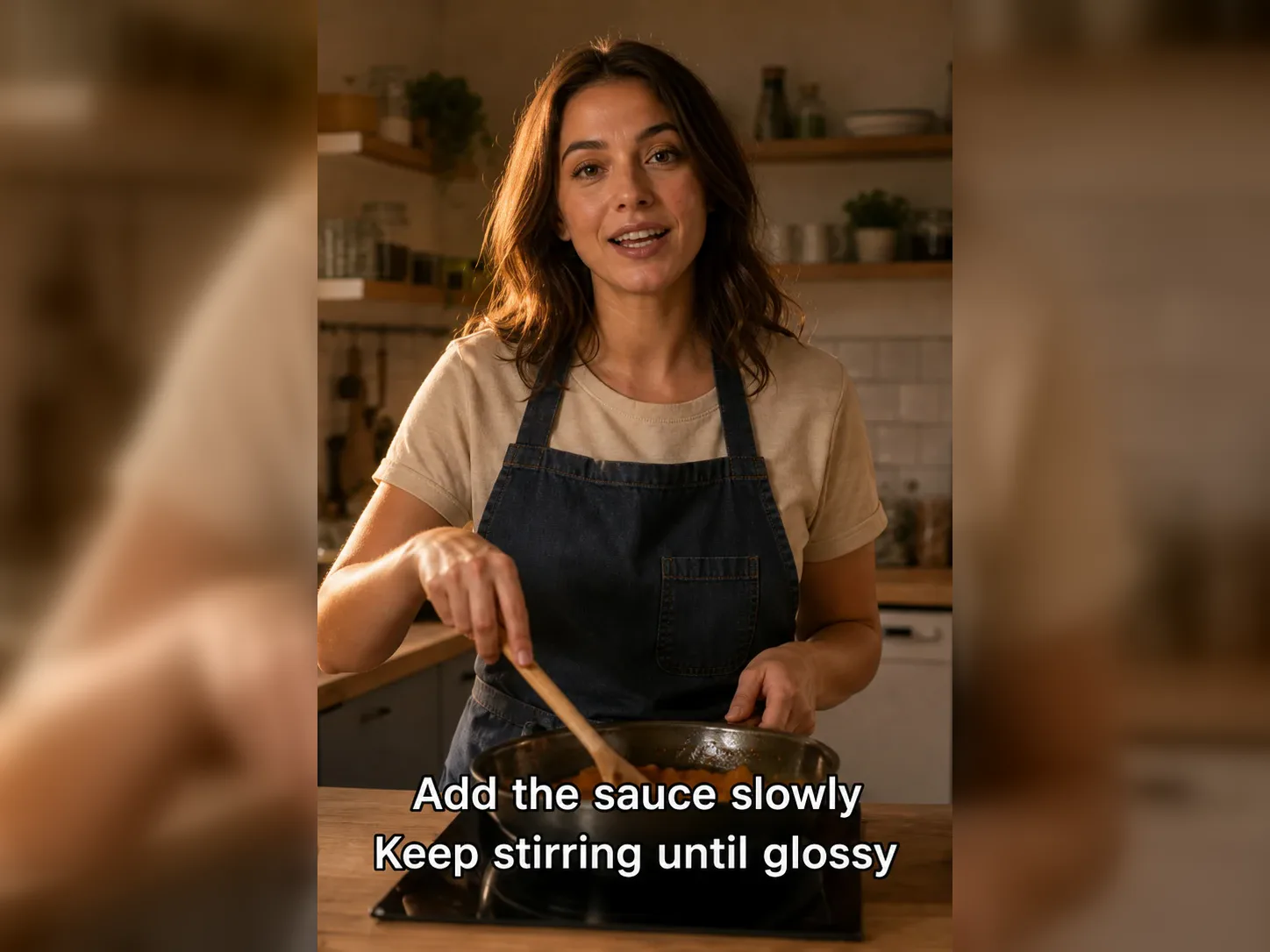

AI Subtitle Remover Comparison

Best AI Subtitle Remover Tools Compared

Upload your video

Drag & drop a file here, or click to browse

Videos are processed securely and never shared

MP4, MOV, AVI, MKV, WebM · Up to 2GB

See the difference

BeforeCooking tutorial video frame with burned-in subtitles before AI subtitle removal - UnmarkAI
AfterCooking tutorial video frame after AI removes subtitles and restores the background - UnmarkAI

Compare the best AI subtitle remover tools for videos with hardcoded captions, burned-in subtitles, and lower-third text. Use this guide to choose between AI inpainting, online erasers, desktop batch software, and editor workarounds.

The right subtitle remover depends on the source: soft subtitle tracks can be disabled, but hardcoded subtitles are part of the pixels and need background reconstruction. This comparison focuses on lawful cleanup for videos you own, license, produce for clients, or are explicitly authorized to edit.

What is the best AI subtitle remover for hardcoded subtitles?

The best AI subtitle remover for hardcoded subtitles is a tool that removes the subtitle pixels and reconstructs the hidden background instead of cropping the frame or covering the text with blur. UnmarkAI is designed for owned or authorized videos where creators need a clean master for re-captioning, translation, social reposting, product edits, courses, ads, or short-drama localization.


How should creators choose a subtitle remover?

Choose based on the subtitle type and workflow. If the subtitles are soft SRT, VTT, or ASS tracks, disable or remove the subtitle track in an editor. If the subtitles are burned into the video, use AI inpainting. For one-off social clips, a browser tool is fastest; for offline batch processing, desktop software may fit; for localization, prioritize clean background restoration and export quality.

What makes an AI subtitle remover good?

A strong AI subtitle remover handles hardcoded text as a visual reconstruction problem. It should detect the subtitle region, remove both the bright glyphs and dark outlines, and rebuild the frame underneath with matching color, texture, and motion. The most important signal is not whether the text disappears; it is whether the old subtitle location still looks natural after export.

Hardcoded Subtitle Support

The tool must work on subtitles that are permanently rendered into the video pixels, not only editable caption tracks.

Background Reconstruction

The best results rebuild the pan, clothing, product, UI, or scenery behind the removed text instead of smearing it.

No Crop Dependency

Cropping may hide captions, but it also removes composition, products, hands, faces, and lower-frame context.

Workflow Fit

Creators need different tools for one clip, batch episodic cleanup, social reposting, desktop privacy, or localization.

How to pick the right AI subtitle remover

Start by identifying whether the subtitles are editable tracks or burned-in pixels. Then test output quality on the exact type of background your video uses.

01

Check if subtitles are soft or hardcoded

Turn off subtitle tracks in your player or editor first. If the text remains visible, it is burned into the pixels and needs AI inpainting or manual cleanup.

02

Match the tool to the workflow

Use browser AI removal for fast hardcoded subtitle cleanup, desktop software for offline batch work, and full editors when the captions are still editable project layers.

03

Test on complex frames

Do not judge only on plain backgrounds. Test hands, faces, fabric, product shots, UI screens, or moving scenery behind the subtitle area.

04

Verify rights and export needs

Process only content you own or are authorized to edit, then confirm export resolution, batch limits, privacy expectations, and whether the clean master needs translation or re-captioning.

Same clip, different subtitle cleanup results

These illustrative examples use the same source frame so you can see the practical difference between AI inpainting, partial cleanup, soft residue, blur patches, and crop-based workarounds.

  • UnmarkAIBuilt around AI inpainting for hardcoded subtitles, captions, and on-screen text in authorized videos.
  • Media.io AniEraserA general online eraser workflow that can work well on simple subtitle areas and short clips.
  • Vmake AIUseful for quick caption-removal tasks on social-style clips where speed matters.
  • HitPaw OnlineOnline cleanup option with an eraser-style workflow for subtitles and visible video text.
Ready for a cleaner clip?AI-powered, no blur, no quality drop.
Start free

UnmarkAI subtitle cleanup

AI removes subtitle text and rebuilds the hidden video detail.

BeforeHardcoded subtitles before UnmarkAI subtitle removal comparison
AfterIllustrative UnmarkAI result after hardcoded subtitle removal

Media.io AniEraser style cleanup

Good for simple areas, with light residue possible on detailed motion.

BeforeHardcoded subtitles before Media.io AniEraser style comparison
AfterIllustrative Media.io AniEraser style subtitle cleanup result

Vmake AI style cleanup

Fast browser cleanup, with some softened texture in busy lower thirds.

BeforeHardcoded subtitles before Vmake AI style comparison
AfterIllustrative Vmake AI style subtitle cleanup result

HitPaw Online style cleanup

Eraser-style results can need a second pass on complex backgrounds.

BeforeHardcoded subtitles before HitPaw Online style comparison
AfterIllustrative HitPaw Online style subtitle cleanup result

Fotor style cleanup

Simple browser cleanup can leave a visible softened patch over busy video detail.

BeforeHardcoded subtitles before Fotor style comparison
AfterIllustrative Fotor style subtitle cleanup result with soft patch

GhostCut style cleanup

Useful for localization workflows, with output quality depending on source complexity.

BeforeHardcoded subtitles before GhostCut style comparison
AfterIllustrative GhostCut style subtitle cleanup result

Satura AI style cleanup

Fast caption removal can still need inspection on textured subtitle backgrounds.

BeforeHardcoded subtitles before Satura AI style comparison
AfterIllustrative Satura AI style subtitle cleanup result

GiliSoft desktop workflow

Offline tools can support batch work, but manual cleanup may leave more visible traces.

BeforeHardcoded subtitles before GiliSoft desktop workflow comparison
AfterIllustrative GiliSoft desktop style subtitle cleanup result

Editor, desktop, and localization alternatives

Some products are better described as editor workflows or broader video cleanup suites. They can still help, but the tradeoff is often manual masking, visible blur, cropping, or desktop setup.

  • CapCutBest when captions are editable project layers; crop or blur workarounds are less ideal for burned-in subtitles.
  • FotorSimple browser cleanup for visible marks, but blur-like smoothing can be more noticeable in detailed video frames.
  • GhostCutA localization-oriented option for subtitle removal and video translation workflows.
  • GiliSoftDesktop software can fit offline batch workflows where manual control is more important than browser convenience.
Ready for a cleaner clip?AI-powered, no blur, no quality drop.
Start free

AI subtitle remover product comparison

The products below are positioned for different jobs. Use this table as a workflow map rather than a universal ranking; always test your own source clip before committing a batch.

ProductBest fitWorkflowOutput tradeoff
UnmarkAIHardcoded subtitles, burned-in captions, and text overlays in authorized videosBrowser upload, select text area, AI inpainting, preview, downloadBest when clean background reconstruction matters more than a quick blur
Media.io AniEraserQuick online eraser tasks for subtitles, text, and watermarksBrowser-based erase workflowCan be convenient for simple areas; complex backgrounds may need review
Vmake AICreator clips and fast caption-removal jobsOnline AI caption removerGood for speed; inspect texture around detailed subtitle areas
HitPaw OnlineOnline subtitle removal with an eraser-style flowUpload, mark/remove, exportMay need multiple passes on moving or detailed lower thirds
CapCutEditable captions inside an editing projectEditor layer removal, crop, or blur workaroundExcellent for editable captions; not ideal for burned-in subtitle reconstruction
GhostCutSubtitle removal tied to localization workflowsVideo processing and translation-oriented workflowUseful for localization teams; test output on complex scenes
Satura AICreator caption-removal workflows and short online cleanup jobsOnline caption remover workflowGood for fast removal; review detailed backgrounds before publishing
FotorSimple video mark/text cleanup in the browserOnline watermark/object removal style workflowBlur-like smoothing can be visible on busy footage
GiliSoftOffline desktop batch/manual controlDesktop software workflowMore setup and manual review, but useful when browser upload is not preferred

Which subtitle remover should you choose?

Choose by source type, not by the tool name. A clean subtitle-removal workflow starts with identifying what kind of text you are dealing with and how the finished video will be reused.

Use UnmarkAI for hardcoded captions

Best when the subtitle is burned into pixels and the final export needs to look clean without a blur bar.

Use an editor for soft captions

If the text is still an SRT/VTT track or a project-layer caption, remove the track or layer instead of using inpainting.

Use desktop tools for offline batches

Desktop software can make sense for teams that need local processing and are comfortable with more manual review.

Use localization workflows for series

Short dramas, courses, and international releases may need subtitle removal before translation, dubbing, or re-captioning.

Use subtitle removal only on authorized content

Subtitle removal is legitimate when you own the video, have a license that permits editing, are producing client-approved work, or need to fix your own AI-generated output. Do not use subtitle removers to strip attribution, notices, or access cues from third-party content without permission.

Owned Productions

Clean subtitles from videos you created, filmed, generated, or control for distribution.

Licensed Footage

Confirm the license permits derivative edits and subtitle changes before processing stock or partner footage.

Client-Approved Edits

Agency or localization work should document the content owner approval and final delivery context.

Accessibility Review

If subtitles carry accessibility or compliance value, replace them with updated captions rather than simply removing them.

Why UnmarkAI is the best fit for clean hardcoded subtitle removal

UnmarkAI focuses on AI inpainting for visible video artifacts: hardcoded subtitles, burned-in captions, timestamps, usernames, and text overlays. That makes it different from editor workflows that only remove caption layers and from blur tools that hide the text but leave an obvious patch.

Pixel-Level Cleanup

The workflow treats subtitles as pixels to erase and reconstruct, not as a box to blur.

Full Frame Preserved

Keep the full frame for Shorts, Reels, tutorials, product videos, courses, and localization masters.

Browser-Based Workflow

Upload, select the subtitle area, preview the result, and download without installing a desktop editor.

Built for Authorized Reuse

The page and product copy are aligned with lawful cleanup for owned, licensed, or explicitly authorized videos.

Trust

Built for authorized video cleanup

UnmarkAI is designed for creators and teams working with content they own, license, or have permission to edit. The product copy, terms, and upload flow all reinforce that boundary.

Rights-aware workflow

Designed to help you clean videos you own, license, or are explicitly authorized to edit.

Preview before download

Check the AI reconstruction frame-by-frame before exporting the final clean video.

Secure processing

Your uploads and exports are processed securely and never shared with third parties.

Clear acceptable use policy

Strict guidelines against removing attributions from unauthorized third-party content.

Frequently asked questions

Practical answers for safe, high-quality cleanup workflows.

What is the best AI subtitle remover for videos?

For hardcoded subtitles, the best option is an AI inpainting tool that removes the text and reconstructs the hidden background. UnmarkAI is built for that workflow in owned or authorized videos. If your subtitles are soft SRT or VTT tracks, remove the subtitle track in an editor instead.

Is CapCut a good subtitle remover?

CapCut is very good when captions are editable layers inside the project. For subtitles already burned into the video pixels, CapCut often requires cropping, masking, or blur workarounds, which can be less natural than AI inpainting.

Can AI remove subtitles without blur?

Yes, if the tool uses inpainting rather than blur. AI inpainting removes the subtitle pixels and fills the area with matching background detail so the frame stays intact.

Are these product comparison images real benchmark results?

No. The comparison images are illustrative examples made from one generated source frame to explain common output differences: clean inpainting, mild residue, blur patches, and crop workarounds. Always test each product on your own clip before choosing a batch workflow.

Is it legal to remove subtitles from a video?

It is legal when you own the content, have a license that allows editing, or have explicit permission from the rights holder. Do not remove subtitles, attribution, or notices from third-party content in ways that violate copyright, contracts, platform rules, or accessibility requirements.

Ready to clean your videos?

Join thousands of creators who use UnmarkAI to deliver distraction-free content.

Start for Free Now

Get 10 credits on sign up · No credit card required