
How to Remove Timestamps from Old Camcorder and VHS Footage

If you have ever digitized a box of old family tapes, you know the problem. There in the corner of every frame — bright orange or stark white — sits a date stamp reading something like "01-JAN-1997 12:00 AM." It was useful in 1997 when you wanted to know when the recording was made. Twenty years later, it is a permanent distraction that covers part of the picture and makes your footage look dated before anyone watches a single second. For a long time, the only answers were harsh: crop the frame and lose content, or blur the area and draw even more attention to it. Neither option was good. AI inpainting has changed that. This article explains how to remove timestamps from old footage — VHS, Hi8, MiniDV, and other legacy formats — using AI that reconstructs the hidden background pixel by pixel, with no cropping, no blur, and no quality loss.
Why Old Camcorder Footage Has Date Stamps
In the late 1980s and 1990s, camcorder manufacturers — Sony, Canon, JVC, Panasonic — added an automatic date and time recording feature to consumer video cameras. The idea was practical: cameras had no internal clock display on playback, so burning the date directly into the video frame gave viewers a permanent record of when each clip was shot. The feature was turned on by default on most models, and many users never knew it could be switched off.
When those analog and early digital tapes were recorded, the date stamp became part of the visible image — not a subtitle track, not metadata, but actual pixels on every single frame. That is why you cannot simply "turn it off" during playback. The stamp is physically embedded in the footage, and removing it means editing every frame. On a two-hour tape at 30 frames per second, that is over 200,000 individual frames to process. Manual removal is not practical. AI inpainting makes it possible by automating the reconstruction across the entire clip.
Common Types of Legacy Timestamps in Old Video
Not all date stamps look the same. The format, position, color, and font depend on the camera brand and the recording format. Here are the most common types you will encounter when working with old footage.
VHS, VHS-C, and Hi8 Date Stamps
Analog formats like VHS, VHS-C, and Hi8 typically display the date in the lower-left or lower-right corner of the frame. The stamp is usually white text on a semi-transparent dark box, or plain white text directly on the image. Sony Handycam models from the 1990s are notorious for this — the bright orange date code is instantly recognizable. On VHS-C tapes (the compact VHS format used in many consumer camcorders), the stamp often flashes on and off at regular intervals, which can actually make removal trickier because the AI must handle frames where the stamp is visible and frames where it is not.
MiniDV and Digital8 Timestamps
MiniDV and Digital8 cameras from the early 2000s had higher resolution than analog formats, but the date stamp problem persisted. These cameras burned in a cleaner, smaller date code — usually white text in the lower portion of the frame. Canon Vixia, Sony DCR, and Panasonic PV series cameras all produced variations of this style. Because the digital resolution was higher, the timestamp text is often sharper and more defined, which can actually make it easier for AI to detect and remove precisely.
DVD Camcorder and Early HDD Camera Stamps
Some DVD-based camcorders (Sony DVD HandyCam, Hitachi DZ series) and early hard-drive cameras also burned date stamps into the frame. These tend to have a more modern-looking font compared to the blocky 90s style, but they are equally permanent. Despite being digital, the stamps were rendered into the video output, not stored as metadata — which means they require the same AI removal approach as older analog stamps.
How AI Inpainting Removes Timestamps from Old Footage
AI inpainting works by analyzing the pixels around the timestamp and using that information to reconstruct what the hidden area should look like. Think of it like a digital restorer who studies the texture, color, and lighting of the surrounding area, then paints in the missing piece so seamlessly that you cannot tell anything was ever there.
For old footage specifically, AI inpainting handles several challenges that legacy recordings present. Old VHS and Hi8 captures are often noisy — the analog signal introduces grain and color artifacts. AI models trained on real footage can distinguish between noise and actual content, so the reconstructed area blends naturally with the surrounding grain pattern rather than looking conspicuously smooth. Deinterlacing artifacts, compression blocks from early digital formats, and color bleeding from aged tapes are all handled without leaving visible seams.
The result is footage that looks as though the camera never stamped the date in the first place. No blur patches, no cropped edges, no dark boxes covering the corner — just the original scene, restored to its clean state. For a deeper explanation of how inpainting works across different video text types, see our guide on how to remove text from a video without cropping or blurring.
Step-by-Step: Remove Timestamps from Old Video
Removing a date stamp from old camcorder footage takes four steps. The entire process runs in your browser — no software to install, no video editing experience required.
Step 1: Digitize Your Old Tapes
If your footage is still on tape, you need to transfer it to a digital file first. Use a high-quality capture device — a dedicated VHS-to-digital converter or a camcorder with passthrough capability. Capture at the highest resolution your source supports. For VHS this is typically 480i, for MiniDV it is 480i or 720p. Do not deinterlace before uploading — upload the native interlaced file and deinterlace as a separate step if needed, either before or after timestamp removal.
Step 2: Upload Your Video
Go to the UnmarkAI timestamp removal tool and upload your digitized video. UnmarkAI accepts MP4, MOV, AVI, and WebM files. Use the original capture file — re-encoding or compressing the video before upload will reduce the quality of the final result.
Step 3: Select the Timestamp Region
Draw a box around the area where the date stamp appears. The box should be tight around the stamp but include a small margin of surrounding pixels — this gives the AI more context to work with when reconstructing the background. The selection is applied to every frame in the video automatically. Here is what the process looks like on a real camcorder recording:


Step 4: Preview and Download
The AI processes your video and shows you a side-by-side preview of the original and the cleaned version. Check the result — make sure the timestamp is fully removed and the background looks natural. When you are satisfied, download the clean export at the original resolution. No watermarks are added to the output.
Before and After: Old Footage Timestamp Removal
The best way to understand how well AI inpainting works on old footage is to see the results. Here are three examples showing timestamp removal from different types of legacy recordings.
Camcorder Date Stamp Removal
Classic camcorder date stamp in the corner of the frame. The AI reconstructs the background texture so the result looks natural — as if the stamp was never recorded.
CCTV and Security Camera Timestamp Removal
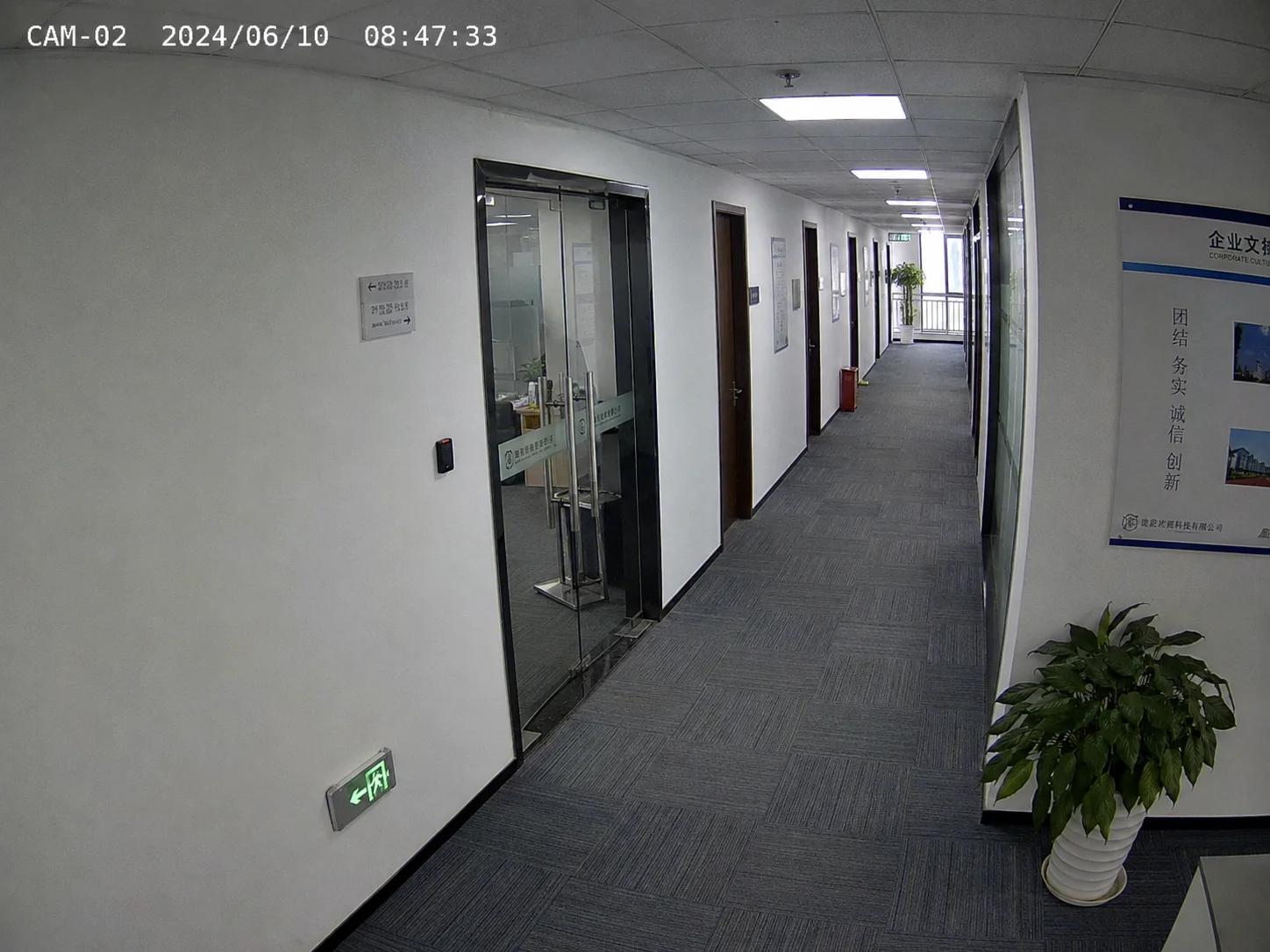
Security camera footage from systems like Hikvision and Dahua often includes a timestamp overlay showing the channel name, date, and time. These overlays are useful for surveillance but unnecessary when repurposing authorized footage for presentations, training, or archival. AI removes the full overlay block and reconstructs the scene behind it.

Dashcam Timestamp Removal
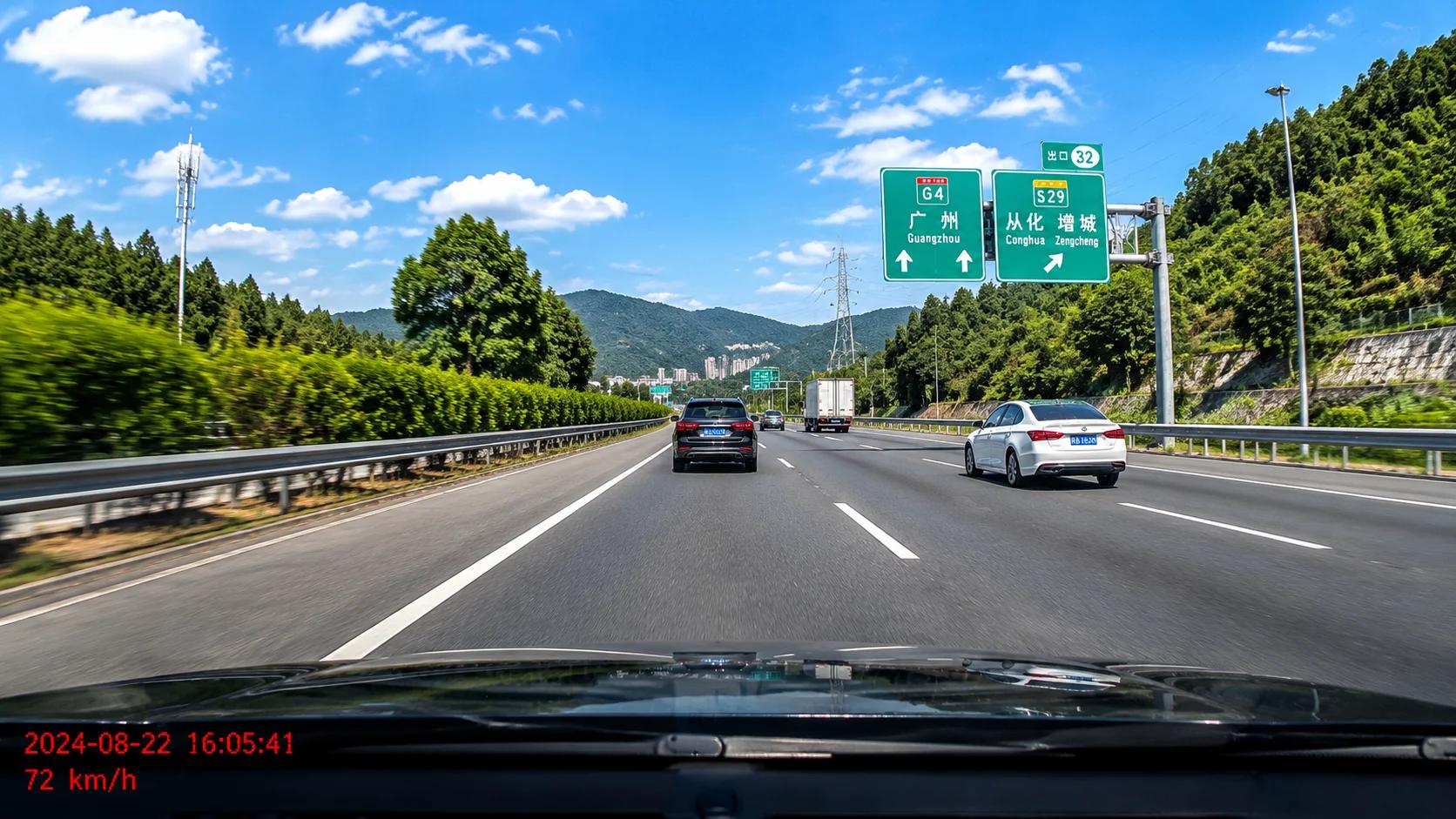
Dashcam recordings include date, time, and sometimes speed data burned into the frame. When sharing dashcam clips on social media or using them in video projects, these overlays can be distracting. AI inpainting cleanly removes the timestamp block while preserving the road scene behind it.

Tips for Best Results When Removing Timestamps from Old Footage
Old footage has unique characteristics that differ from modern recordings. These tips will help you get the cleanest possible result when removing date stamps from legacy tapes.
Digitize at the highest quality possible. The quality of the final result depends on the quality of the source file. Use a dedicated video capture device, not a cheap USB dongle. Capture in a high-bitrate format like DV-AVI or ProRes if your setup supports it. Avoid highly compressed MP4 captures — the compression artifacts will interfere with the AI reconstruction.
Handle deinterlacing thoughtfully. Most analog footage is interlaced (each frame contains two fields captured at slightly different times). You can either deinterlace before uploading or process the interlaced file directly. If the timestamp is in a static area of the frame, deinterlacing first usually produces cleaner results because the AI has more consistent pixel data to work with.
Draw a tight selection box. The selection should closely surround the timestamp text with just a small margin of surrounding pixels. A box that is too large means the AI has to reconstruct more area than necessary, which can reduce accuracy. A box that is too small might cut off part of the stamp, leaving visible fragments.
Process family archives in batches. If you are cleaning an entire collection of old tapes, the date stamp is usually in the same position on every clip from the same camera. You can use batch processing to apply the same selection to multiple files. For tips on processing multiple videos efficiently, see our guide on batch removing subtitles and overlays from video.
Preserve the original files. Always keep the original digitized files. AI technology improves over time, and a future re-processing might produce even better results. Store the raw capture alongside the cleaned version so you can revisit the footage later.
Frequently Asked Questions
Can I remove the date stamp from old VHS recordings?
Yes. Once you have digitized the VHS tape into a video file (MP4, MOV, AVI, or WebM), upload it to UnmarkAI, select the date stamp area, and the AI will remove the stamp and reconstruct the background behind it. The original tape and the digitized file are not modified — you receive a new, clean export.
How do I digitize old camcorder tapes before removing timestamps?
You need a video capture device that connects your VCR or camcorder to your computer. For VHS and VHS-C tapes, use a VHS player connected to a USB video capture adapter or a dedicated digitization service. For Hi8 and Digital8, use the original camcorder with a FireWire (IEEE 1394) or USB capture connection. For MiniDV, connect via FireWire for the best quality transfer. Capture in DV-AVI or high-bitrate MP4 format for the cleanest source file.
Does AI timestamp removal work on low-resolution old footage?
Yes. AI inpainting is effective even on standard-definition VHS captures (480i) and other low-resolution footage. The AI works with the available pixel data and reconstructs the background at the same resolution as the source file. While the result will match the quality of the original footage rather than upscaling it, the timestamp will be cleanly removed without introducing additional artifacts.
Can I remove timestamps from multiple old videos at once?
Yes. If your old footage comes from the same camera, the timestamp position will be consistent across clips. You can process each file individually through the UnmarkAI Magic Eraser, applying the same selection to each video. For large archives, process files in groups to maintain quality and consistency.
Will removing the timestamp damage my original footage?
No. UnmarkAI does not modify the uploaded file. It processes the video and generates a new, clean export file that you download separately. Your original digitized footage remains untouched on your computer. You always have both versions available — the original with the timestamp and the cleaned version.
What video formats does UnmarkAI support for old footage?
UnmarkAI accepts MP4, MOV, AVI, and WebM files — the formats most commonly produced by video capture software when digitizing old tapes. Whether you captured your VHS as DV-AVI, your MiniDV as raw MOV, or converted everything to MP4, the tool handles it. For more on the full range of video cleanup capabilities, see our guide to removing watermarks and overlays from video.
Old footage carries irreplaceable memories — birthday parties, family vacations, school events, milestones that exist nowhere else. The date stamp should not be the reason those memories stay hidden in a drawer. With AI inpainting, you can remove timestamps from camcorder recordings, VHS captures, and other legacy formats in minutes, producing clean footage that looks as though the stamp was never there. Ready to clean up your old footage? Try the UnmarkAI timestamp removal tool — upload your video, select the date stamp, and download a clean version at full resolution. No software to install. Free to try on unmarkai.net.