
How to Remove Moving Objects from Video With AI Tracking

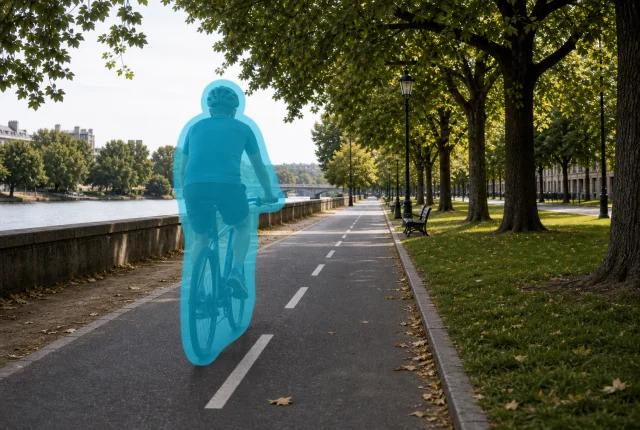
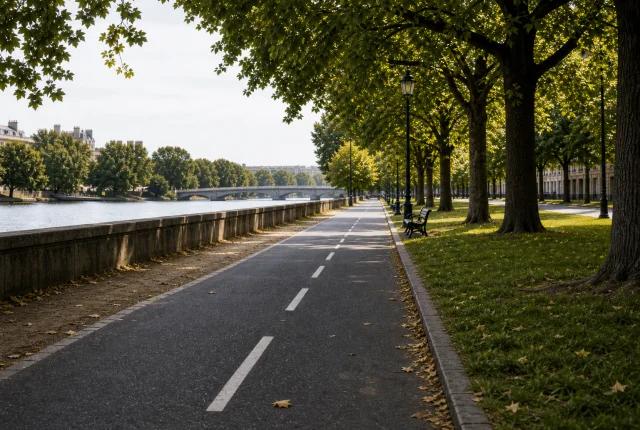
To remove a moving object from video, track a mask around it through each continuous shot, then reconstruct the hidden background with information from surrounding pixels and nearby frames. A single-frame eraser is not enough: the object changes position, scale, angle, blur, and occlusion while the camera and background may also move.
This workflow applies to an unwanted passerby, vehicle, microphone, prop, reflection, product, or other object in footage you are authorized to edit. The best results come from a high-quality source, a precise but stable mask, shot-by-shot processing, and a clean view of the background somewhere near the removal interval.
The practical quality test is simple: after removal, the background should move as naturally as the rest of the frame. If the patch stays fixed while the camera pans, leaves a shadow behind, or bends a repeating pattern, the tracking or reconstruction needs another pass.
Why is a moving object harder to remove than a static object?
A moving object creates a different hole in every frame. Removing it means solving two linked problems: locate the complete object over time, then infer what would have appeared behind it. Both problems become harder when the camera moves or when the object crosses detailed foreground elements.
The object changes shape and appearance
A walking person swings arms and legs. A turning car changes its silhouette. Motion blur expands the apparent boundary. A rigid mask that fits one frame may cut into the subject later or leave fragments behind.
The background may never be fully visible
The object can hide a wall, sign, face, product, or patterned surface for the entire shot. When no clean frame exists, a restoration system has less direct evidence and must infer more of the scene. Fine geometry and readable text behind the object are especially difficult to recreate reliably.
Shadows, reflections, and motion blur belong to the removal
Removing only the solid object can leave a floating shadow, reflection, dust trail, or blurred edge that reveals the edit. Decide at the start whether these dependent effects should disappear with the subject or remain as part of the scene.
Camera movement changes every background coordinate
During a pan, tilt, zoom, or handheld move, a patch cannot simply stay in one screen position. The replacement texture must follow the scene perspective and motion. Tracking provides the correspondence needed to keep the selected region aligned.
Cuts and occlusions break continuous tracking
A track should not continue across an edit. It may also fail when the target disappears behind another subject or exits the frame. Those moments are natural boundaries for separate masks, keyframes, or processing segments.
How do AI tracking and temporal inpainting work together?
Tracking answers “where is the object now?”; inpainting answers “what should replace it?” A tracked mask follows the target through the shot. Temporal video inpainting uses scene context across frames so the replacement texture does not change independently on every image.
Adobe’s motion-tracking documentation describes tracking the position and transformation of image features through time. Adobe’s Content-Aware Fill workflow then illustrates the complementary restoration step: define a transparent removal area, analyze a frame range, and supply a reference frame when automatic fill lacks enough information.
An automated AI object remover may combine detection, tracking, masking, and reconstruction behind one interface. You still get better decisions when you understand the stages, because a drifting mask needs a different fix from an implausible background.
Step-by-step: how do you remove a moving object from video?
- Confirm permission and preserve the original. Work only with footage you own, license, or are authorized to edit. Duplicate the source and keep its original resolution, frame rate, and audio untouched.
- Define the complete removal target. List the core object plus any shadow, reflection, attached item, motion blur, or interaction that should disappear. This prevents a technically empty mask from leaving obvious traces.
- Split the clip into continuous shots. Create a new segment at each cut, dissolve, major camera change, or long occlusion. A shorter coherent shot gives tracking and fill a consistent scene model.
- Find the strongest reference frames. Look before and after the target passes for frames that reveal the hidden background. Favor sharp frames with matching lighting and perspective. Note areas that are never visible and will require more inference.
- Draw a close mask with a safety margin. Include blurred edges and dependent shadows without swallowing unrelated details. A huge mask creates unnecessary reconstruction; a tight mask leaves object fragments.
- Track and correct the mask through time. Follow position, scale, rotation, and perspective where needed. Inspect key moments—direction changes, occlusion, fast motion, frame entry, and frame exit—and correct drift before filling.
- Reconstruct the background with temporal context. Use nearby clean information across the selected shot. If repeating lines, faces, or detailed products look wrong, provide a better reference frame or divide the interval into smaller sections.
- Review motion, edges, and audio before export. Watch at normal speed, half speed, and frame by frame. Check the target path, mask boundary, shadows, texture direction, lighting, and cut frames; then export a clean master without unnecessary re-encoding.
What should you check when the result looks wrong?
Moving-object removal troubleshooting
| Symptom | Most likely cause | Corrective action |
|---|---|---|
| Part of the object remains | Mask misses blur, limb, shadow, or reflection | Expand and reshape the mask at key frames |
| Background patch slides | Track drift or wrong motion model | Correct tracking and split the shot if perspective changes |
| Texture flickers | Fill differs between frames | Use temporal context, a reference frame, or a shorter interval |
| Lines bend behind the removal | Insufficient geometry reference | Supply a clean plate or repair the structure manually |
| Foreground subject is damaged | Mask overlaps an occluding object | Separate the occlusion and protect the foreground with another mask |
| Edit fails at a cut | One process range crosses two scenes | End the mask before the cut and start a new shot |
How can UnmarkAI help remove a moving object?
Use UnmarkAI’s video object remover to mark an unwanted moving subject and create a cleaned export for an authorized editing workflow. It is useful when the source project or clean plate is unavailable and you need the full frame rather than a crop or blur. Start with the hardest short segment so you can evaluate motion, occlusion, and background reconstruction before processing a long file.
If the unwanted element is specifically a caption, username, timestamp, or label, use the remove text from video workflow. For burned-in dialogue, use subtitle removal. The AI video cleanup hub helps choose the correct job before uploading.
Compliance note: only remove objects from videos you own, license, or have explicit permission to edit. Do not use cleanup to misrepresent events, remove required disclosures, or alter third-party material without authorization.
Which method should you use for a moving object?
Moving-object removal methods compared
| Method | Best for | Keeps full frame? | Handles movement? | Trade-off |
|---|---|---|---|---|
| Crop | Target stays near an expendable edge | No | Yes, by excluding it | Changes framing and may cut important content |
| Blur or mosaic | Privacy masking and quick review | Yes | Yes, if tracked | Object remains visibly covered |
| Static clone patch | Locked camera and simple background | Yes | Only in limited shots | Patch fails with camera motion or occlusion |
| Tracked clean plate | Controlled professional compositing | Yes | Yes | Needs a suitable plate and editing skill |
| Temporal AI inpainting | General full-frame object cleanup | Yes | Yes | Complex hidden detail still needs quality control |
FAQ about AI moving-object removal
Can AI remove a person walking across the whole frame?
It can attempt the removal, but success depends on what the person covers. A clean background visible before or after the crossing is favorable. A person who covers another face or unique foreground detail for the entire shot requires more inference and may need manual compositing.
Do I need to mask every frame manually?
Usually not. Tracking can propagate an initial selection, but you should inspect and correct key frames where scale, direction, blur, occlusion, or camera perspective changes. Automation reduces repetitive work; it does not eliminate review.
What is the difference between tracking and optical flow?
Tracking generally follows selected features or an object transform, while optical flow estimates apparent pixel motion between frames. OpenCV’s official optical-flow tutorial demonstrates the latter concept. Both can support temporal consistency, but neither reconstructs the hidden scene by itself.
Can AI remove an object when the camera is moving?
Yes, but camera movement raises the difficulty because perspective and visible background change continuously. Accurate tracking, clean neighboring frames, and shot-by-shot processing become more important.
Why is a shadow left after the object disappears?
The mask likely described only the solid subject. Include cast shadows, reflections, and motion blur when they are caused by the removed object, while protecting independent lighting and foreground elements.
Can the clean result be used for localization?
Yes. After quality control, the cleaned export can become a reusable source for the video translation workflow or a market-specific product video translation. Keep the clean master separate from language-specific overlays so future versions do not repeat the removal work.
Track first, reconstruct second, review in motion
A moving-object removal succeeds when the edit respects time. Define the full target, divide the footage into coherent shots, track a stable mask, use the best available background evidence, and inspect the result where motion is hardest. That sequence produces a cleaner and more reusable master than applying a one-frame eraser and hoping it holds.
Try the UnmarkAI video object remover, or compare related workflows in the AI video cleanup hub.