
A Batch Video Cleanup QA Checklist for Reliable Exports
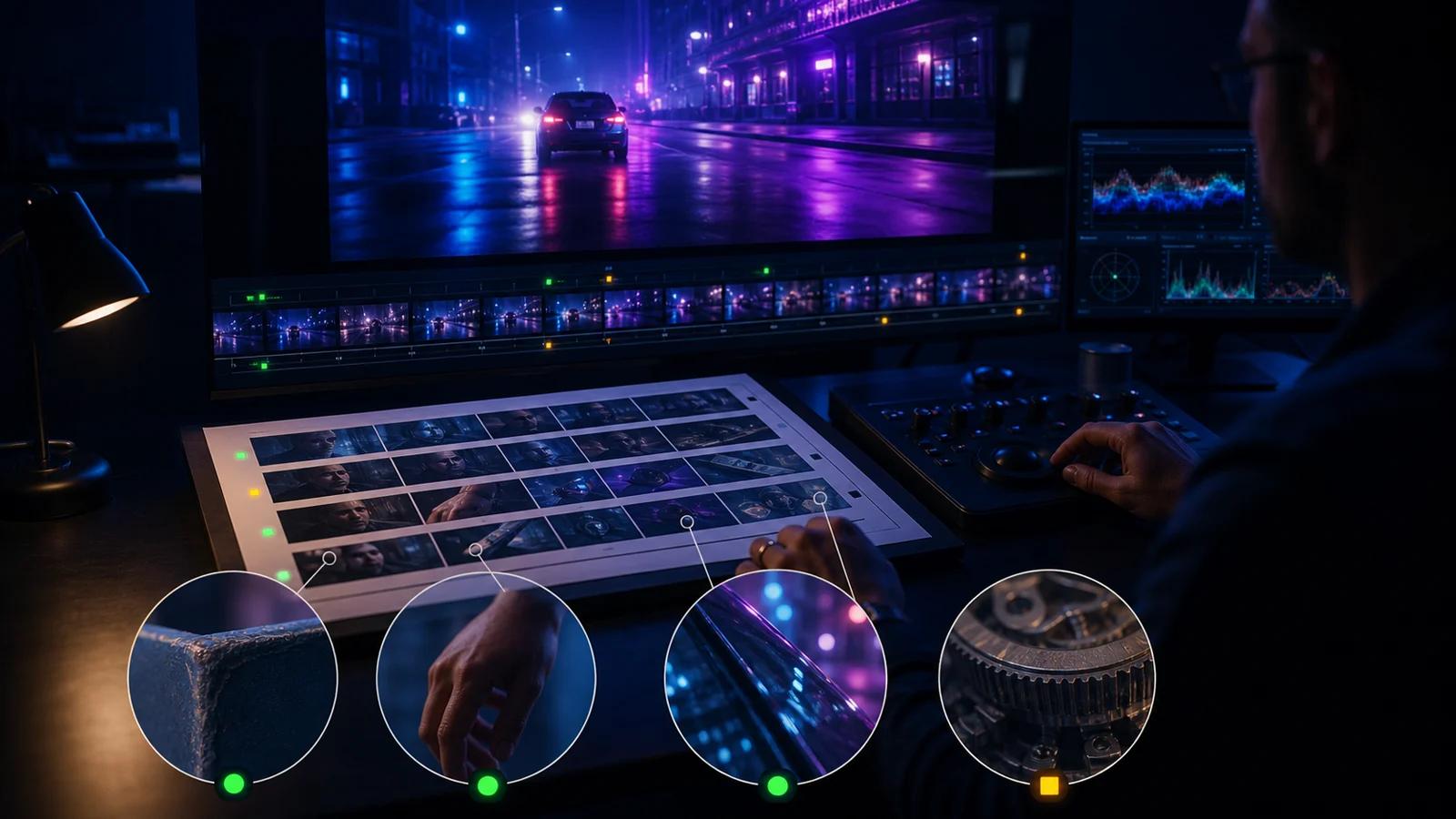
Before approving any batch video cleanup export, run these seven quick checks:
- Removal completeness: every requested caption, word, timestamp, or overlay is gone, including outlines and shadows.
- Temporal stability: the repaired area does not flicker, pulse, ghost, or jump between frames.
- Subject integrity: faces, hands, tools, machinery, products, and interface controls remain visually intact.
- Background continuity: texture, reflections, edges, lighting, and camera motion remain plausible through the repaired zone.
- Export conformity: resolution, frame rate, aspect ratio, duration, codec, and audio layout meet the delivery specification.
- Audio synchronization: speech, actions, cuts, and sound remain aligned from beginning to end.
- Delivery control: filenames, versions, rights, reviewer status, and replacement-caption requirements are correct.
This screen is a minimum, not complete evidence for every frame. A written system directs attention to high-risk moments and keeps pass, retry, and escalation decisions consistent.
Why does batch video cleanup need a separate QA system?
AI video cleanup reconstructs a selected region across time. The covered background may be visible in neighboring frames, but the evidence changes when a hand enters the area, a machine rotates, a camera moves, or a cut introduces a different scene. A clean still can therefore hide a weak sequence.
OpenCV’s optical-flow tutorial defines optical flow as apparent object or camera motion between consecutive frames. This does not imply that every cleanup product uses OpenCV. It explains the review problem: pixels and edges move over time, and large or irregular motion can be harder to track consistently than a static background.
Occlusion creates a second failure mode. If captions cover fingers, tool tips, cables, gears, or control labels, the system must distinguish the intended subject from the area being replaced. A mask can also drift at a cut or temporarily include part of the subject.
Reflections and variable light raise different risks. A glossy product, metal surface, water, monitor, or lens flare can change even when geometry remains stable. Adobe’s official Content-Aware Fill guidance specifically discusses lighting changes, complex moving textures, work-area limits, and reference frames. Its guidance to handle complicated items in sections supports a practical QA rule: review every change in motion, lighting, or camera angle as a new risk event.
Scale changes the consequences: rare defects can recur across a large batch. Combine complete review of high-risk moments with documented sampling of lower-risk footage.
What should every batch video cleanup reviewer check?
Answer in brief: Batch video cleanup reviewers should verify seven things: the requested text or object is absent; the repaired area stays stable from frame to frame; faces, hands, tools, machinery, products, and reflections remain intact; no ghosting, flicker, blur, or mask drift appears; resolution, frame rate, aspect ratio, duration, codec, and audio layout match the delivery specification; sound stays synchronized; and filenames, versions, rights, and approval status are correct. Review all high-risk moments at normal speed, then inspect frames around cuts, occlusions, rapid motion, lighting changes, and subjects crossing the repair zone. Use a written pass/fail standard before processing, record every issue with file name and timecode, and rerun only failed clips or sections when possible. Finish with a separate delivery check on the final files. A still image alone cannot demonstrate temporal consistency. AI cleanup creates candidates for approval; it does not replace human QA or the responsibility to preserve attribution, safety information, and required captions.
Cleanup produces an export; QA decides whether it meets a defined specification. “Looks fine” is not reusable. Record the condition checked, evidence, and action.
How do you review a batch video cleanup export step by step?
- Write the pass/fail standard first. List exactly what should be removed, what must remain, the accepted technical settings, and which artifacts require a retry. Save one approved reference clip when available.
- Group files by risk. Mark files high risk when the repair zone contains motion, occlusion, reflections, fine texture, cuts, or changing text positions. Use medium and low risk only when the background and layout are demonstrably simpler.
- Validate the hardest representative clip. Test a segment containing the largest overlay and the most difficult motion before committing a full batch. Record its selection area, input properties, and approval result.
- Watch every high-risk event at normal speed. Review cuts, camera moves, lighting shifts, entrances and exits, and objects crossing the repair region. Normal playback reveals flicker and timing changes that isolated frames can conceal.
- Inspect frames around each event. Step backward and forward through the transition. Check for residual letter shapes, edge doubling, texture smears, mask drift, or momentary damage to a face, hand, tool, machine, or product.
- Sample lower-risk footage systematically. Check the start, middle, and end of each file plus fixed intervals and every scene change. Increase the sample when one defect is found; do not assume adjacent files are safe because they share a template.
- Verify audio and technical properties. Compare input and output duration, resolution, frame rate, aspect ratio, codec, and audio layout against the job specification. Watch the final seconds and confirm lip, action, and cut synchronization.
- Log issues with actionable evidence. Record file name, version, timecode, artifact, severity, screenshot or frame reference, and required fix. Use controlled values such as pass, retry, manual review, or blocked.
- Rerun only failed files or sections when possible. Adjust the selected area, split at a shot boundary, or provide a reference frame in a manual editor. Recheck the changed section and its boundaries; retain the approved files untouched.
- Run a final delivery audit. Open the actual delivery files, not proxies. Confirm names, counts, checksums if used, captions, audio, rights status, and destination. A second reviewer should sign off on high-risk or client-critical batches.
Where does UnmarkAI fit in a batch cleanup workflow?
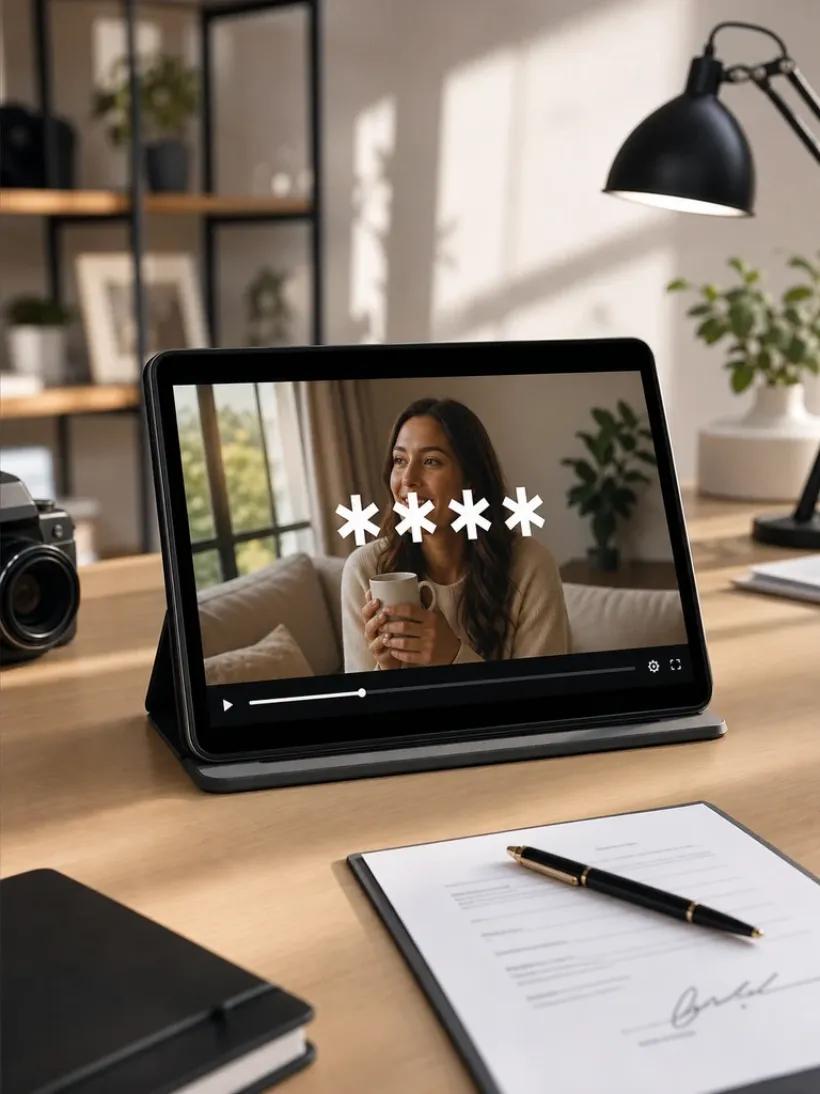
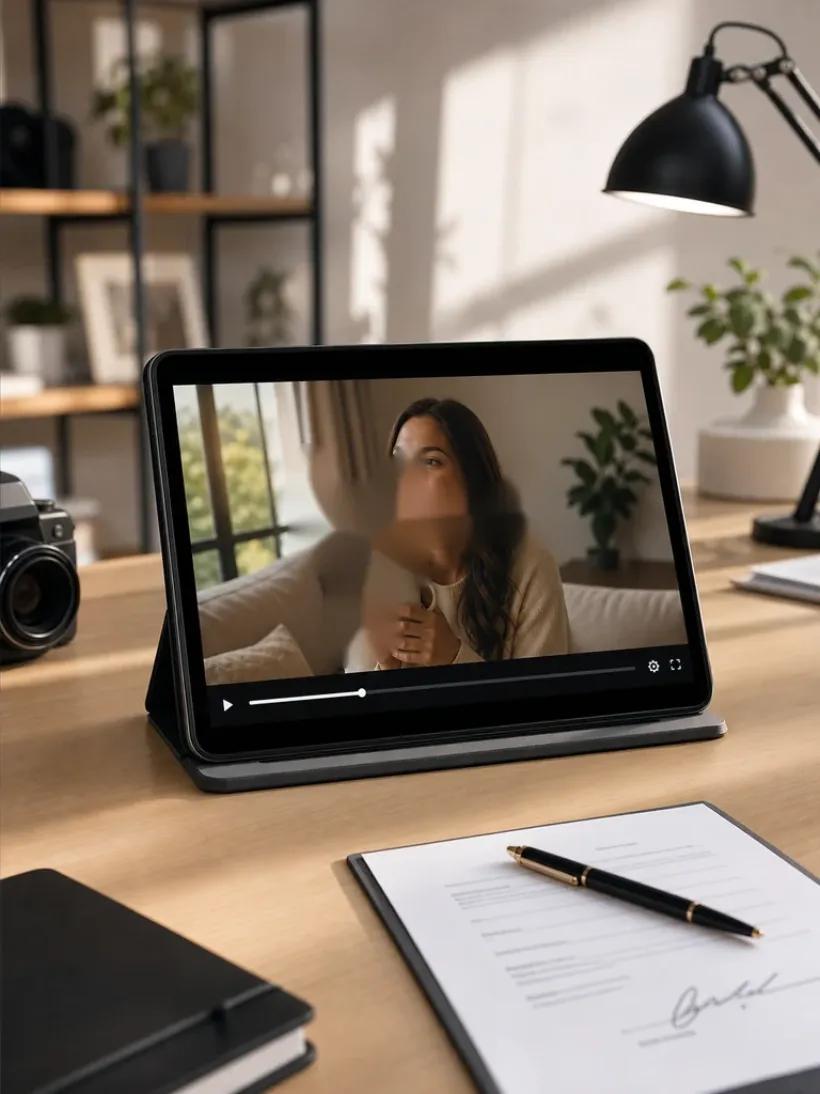
Use UnmarkAI as the cleanup stage, not final approval. For authorized footage with burned-in text or subtitles, select the affected region and generate a clean-export candidate. A reviewer decides whether its background, subject detail, technical settings, and audio meet the standard.
Start with the hardest representative clip. If it passes, save its selection notes and QA criteria. Different compositions may require different regions or retries, so the approved sample is only a reference.
For localization, approve a subtitle-free master before adding the target-language layer. This separates cleanup artifacts from replacement-caption issues.
Which artifacts should trigger a retry or manual review?
Video cleanup artifact review and corrective action
| Artifact | Where to check | Pass condition | Fix action |
|---|---|---|---|
| Ghosting or residual text | First and last frame of each caption; high-contrast backgrounds | No readable letter shapes, outlines, or shadows remain | Expand or refine the region and rerun the failed section |
| Flicker or pulsing fill | Normal-speed playback around motion and lighting changes | Repaired texture and brightness remain temporally stable | Split the shot, adjust the region, or escalate to manual review |
| Mask drift | Cuts, pans, zooms, and moving caption positions | Repair stays limited to the intended area | Re-track or redefine the region at the change point |
| Blur or texture smear | Fabric, hair, grids, screens, wood grain, and machinery | Local detail is consistent with adjacent frames and not distracting in motion | Use a smaller section or a guided reference-frame workflow |
| Missed text | Multi-line captions, outlines, shadows, and edge frames | Every requested text component is absent for its full duration | Extend the time or spatial selection and rerun |
| Occlusion damage | Hands, faces, tools, products, controls, and moving parts | Subject shape, edge, color, and motion remain intact | Isolate the occluded shot and use a narrower or manual repair |
| Reflection mismatch | Glass, metal, water, monitors, and lens flare | Reflection changes follow the scene without obvious discontinuity | Split at the lighting change or use guided manual reconstruction |
| Resolution or FPS mismatch | File properties and motion playback | Export matches the approved delivery specification | Correct export settings and rerun technical QA |
Judge the pass condition in motion. A still cannot confirm temporal stability, synchronization, or a clean repair transition.
Frequently asked questions
Do I need to inspect every frame in every batch file?
Usually not. Watch every high-risk event at normal speed and inspect frames around cuts, occlusions, motion, and lighting changes. Sample lower-risk sections consistently. Expand to full frame-by-frame review when a defect appears or the delivery is safety- or client-critical.
How should I sample a large batch of cleaned videos?
Review the hardest representative file first. For every remaining file, check the start, middle, end, scene changes, and fixed intervals. Review all files with different layouts or backgrounds; do not treat one approved template as evidence for unrelated footage.
Where should I look first on a dynamic background?
Start where motion crosses the repair boundary, then check reflections, fine repeating texture, fast pans, and abrupt light changes. Review several frames before and after the event so a one-frame ghost or edge jump is not missed.
Should I rerun the whole batch when one export fails?
No, unless the same incorrect setting affected every task. Preserve passed exports. Rerun the failed clip or section, document the changed setting, and verify both the repair and its boundary before replacing the rejected version.
How do I verify that new captions use a safe area?
Add captions only after the clean master passes. Check each delivery aspect ratio on the target platform, keep text away from important action and interface controls, and review line breaks and synchronization. W3C notes that captions should not obscure relevant visual information.
What should a video cleanup QA log contain?
Record the file and version, reviewer, date, timecode, risk level, artifact, severity, evidence, fix, retest result, rights status, and final disposition. Use consistent labels so another reviewer can reproduce the decision.
Compliance and accessibility note
Only process videos you own, license, or have permission to edit. Do not remove attribution, provenance, ownership marks, safety labels, evidence, or legally required notices. When old captions are removed for authorized correction or localization, add an accurate replacement where captions are required. The W3C prerecorded-caption guidance calls for synchronized text that conveys dialogue and meaningful non-speech audio.
Test the hardest clip, then use this checklist on every export
Test the hardest clip, save the approved settings, and use the checklist on every batch export. Record the result, rerun only failed items when practical, and deliver only files that pass both visual and technical review. Start with the relevant UnmarkAI workflow, then keep human approval as the release gate.