AI 動画クリーンアップ

Free PixVerse Watermark Remover Online — No Blur - AI オンラインツール

動画をアップロード

ファイルをドラッグ&ドロップ、またはクリックして選択

動画は安全に処理され、共有されません

MP4、MOV、AVI、MKV、WebM · 最大 2GB

違いを見る

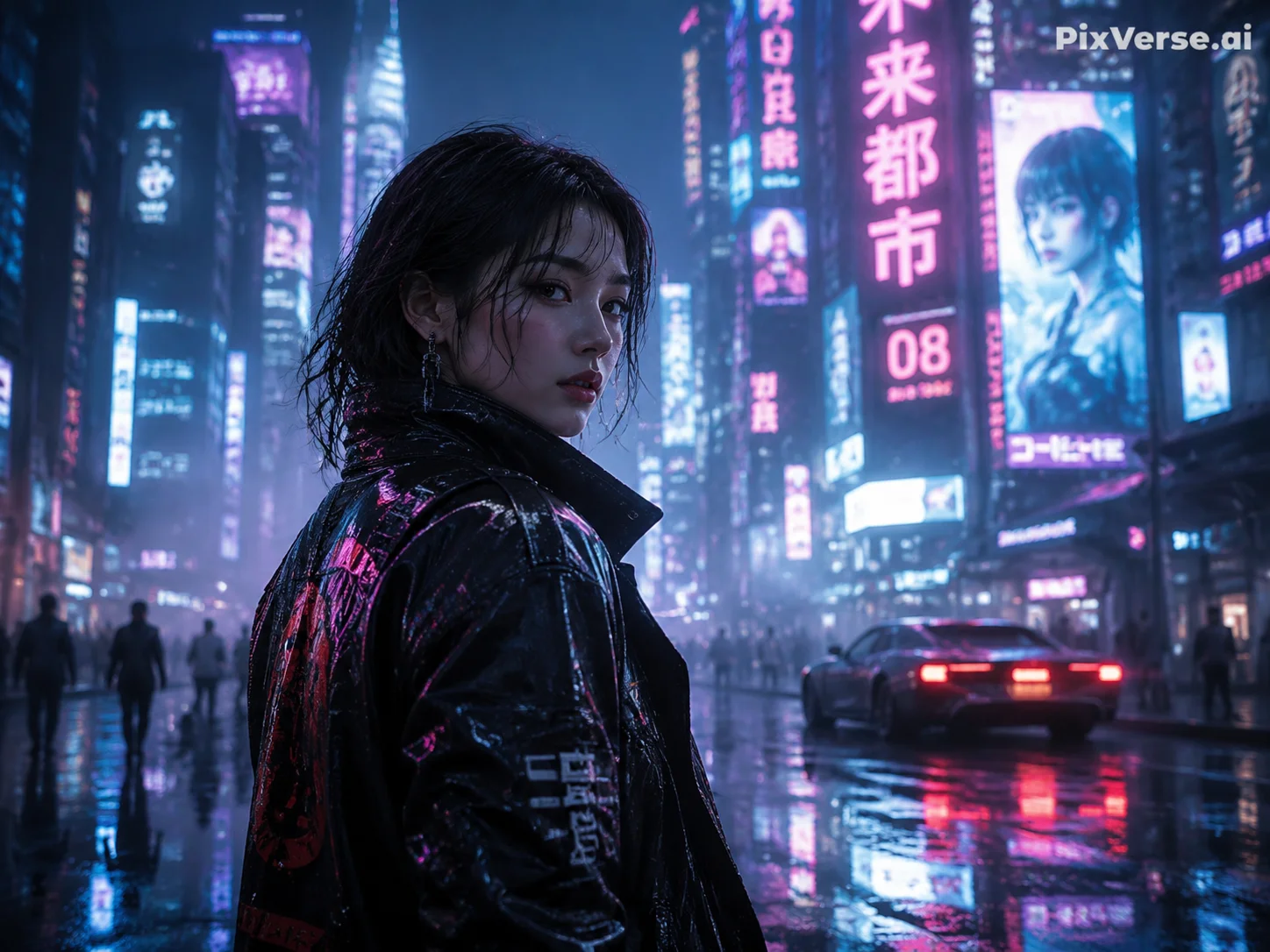
処理前PixVerse AI video with PixVerse.ai watermark in top-right corner before AI removal - UnmarkAI
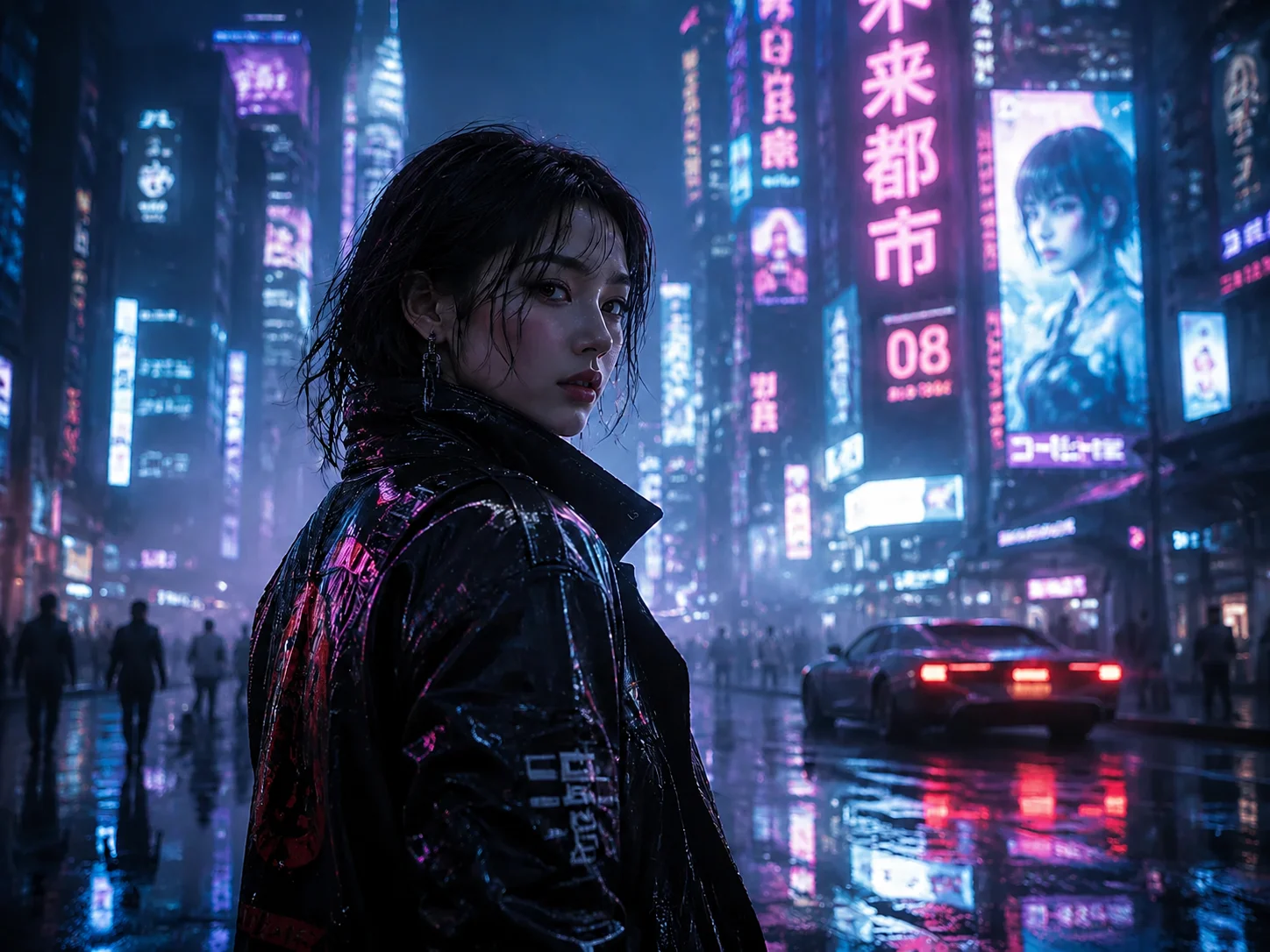
処理後Clean PixVerse-generated video after AI watermark removal, background fully restored - UnmarkAI

AI で動画内の透かし、文字、字幕、ロゴを自然に削除し、元の画質と構図をできるだけ保ちます。

UnmarkAI は、自分が所有する動画や編集許可のある素材を扱うクリエイター、ブランド、チーム向けのオンラインツールです。

AI 動画透かし削除ツール

切り抜きやぼかしよりも、AI は動く透かし、字幕、タイムスタンプ、ロゴを自然に処理しやすい方法です。

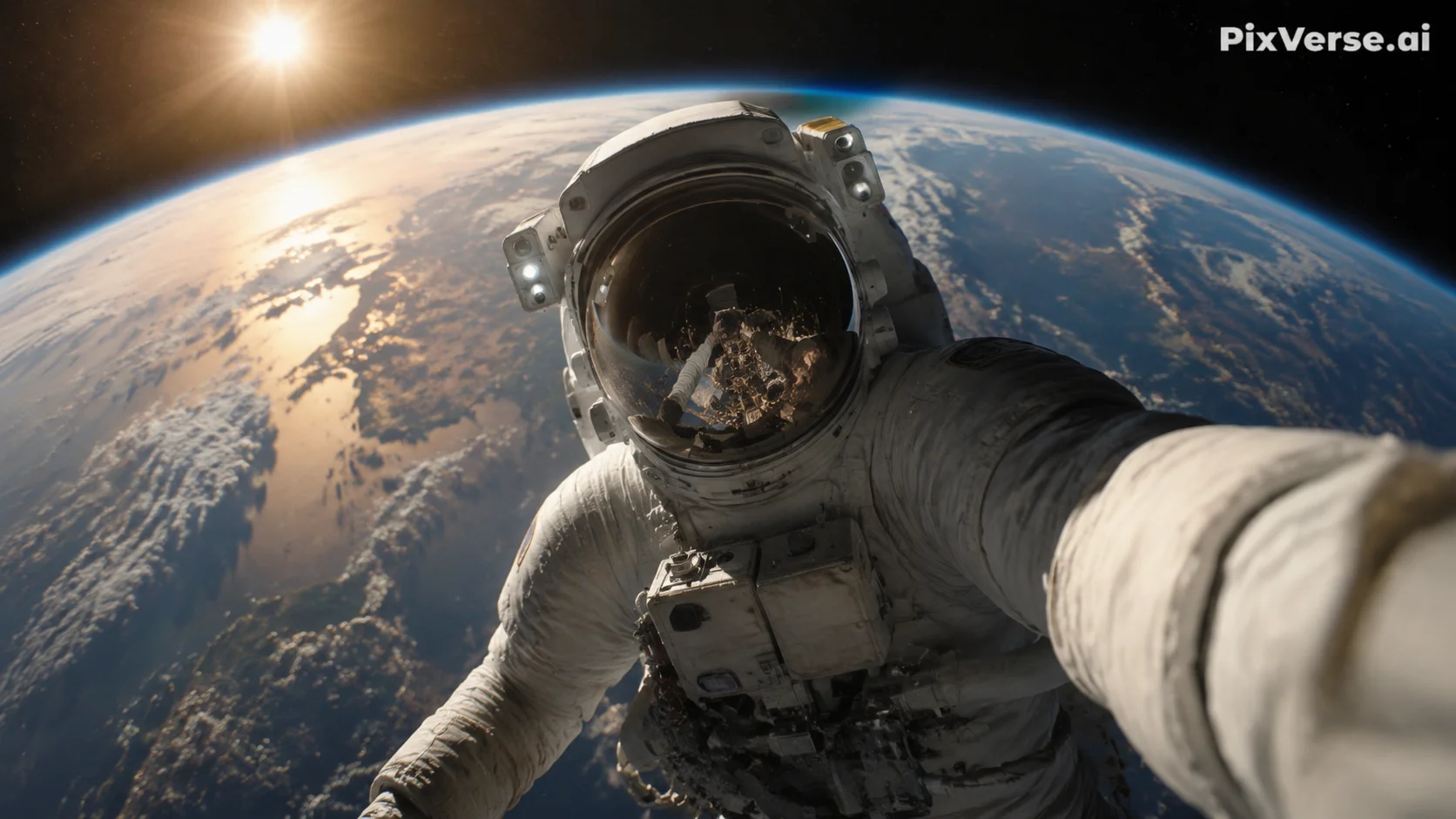
  • The PixVerse watermark is a semi-transparent white "PixVerse.ai" text placed in the top-right corner of the video frame. It is rendered directly into the pixel data — not a separate overlay track.
  • Free-tier PixVerse videos include the watermark and are capped at 720p resolution. Paid plans (starting at $10/month) remove the watermark and unlock higher resolutions.
  • Because the watermark is semi-transparent, the underlying scene is partially visible through it. AI inpainting uses that partial information to reconstruct a clean background.
  • The watermark stays fixed in the top-right corner — it does not bounce or move. This makes it easier for AI to track and remove compared to animated watermarks like TikTok's.

動画の透かしをオンラインで消す方法

権利のある動画をアップロードし、削除したい範囲を指定して、プレビュー後にダウンロードします。

01

動画の透かしをオンラインで消す方法

権利のある動画をアップロードし、削除したい範囲を指定して、プレビュー後にダウンロードします。

02

AI detects and removes the watermark

UnmarkAI scans every frame to locate the PixVerse.ai watermark — typically a white semi-transparent text in the top-right corner. AI inpainting erases the watermark pixels and reconstructs the original background behind it, matching texture, color, and detail.

03

Preview and download

Preview the result side-by-side to confirm the watermark is fully gone. Download the clean export at your original resolution — no blur patches, no cropped edges, no quality loss.

PixVerse watermark removal results

See how AI inpainting removes the PixVerse.ai corner watermark without cropping the frame or leaving blur artifacts. The original background is reconstructed pixel by pixel.
  • No blur or smudgeAI reconstructs the background behind the watermark instead of covering it with a blurred patch.
  • Full frame preservedThe entire video frame stays intact at original resolution — nothing is cropped away.
  • Handles semi-transparent logosThe PixVerse watermark is semi-transparent, blending with the scene underneath. AI inpainting accounts for that blend when restoring the area.
処理前Cinematic AI clip - before
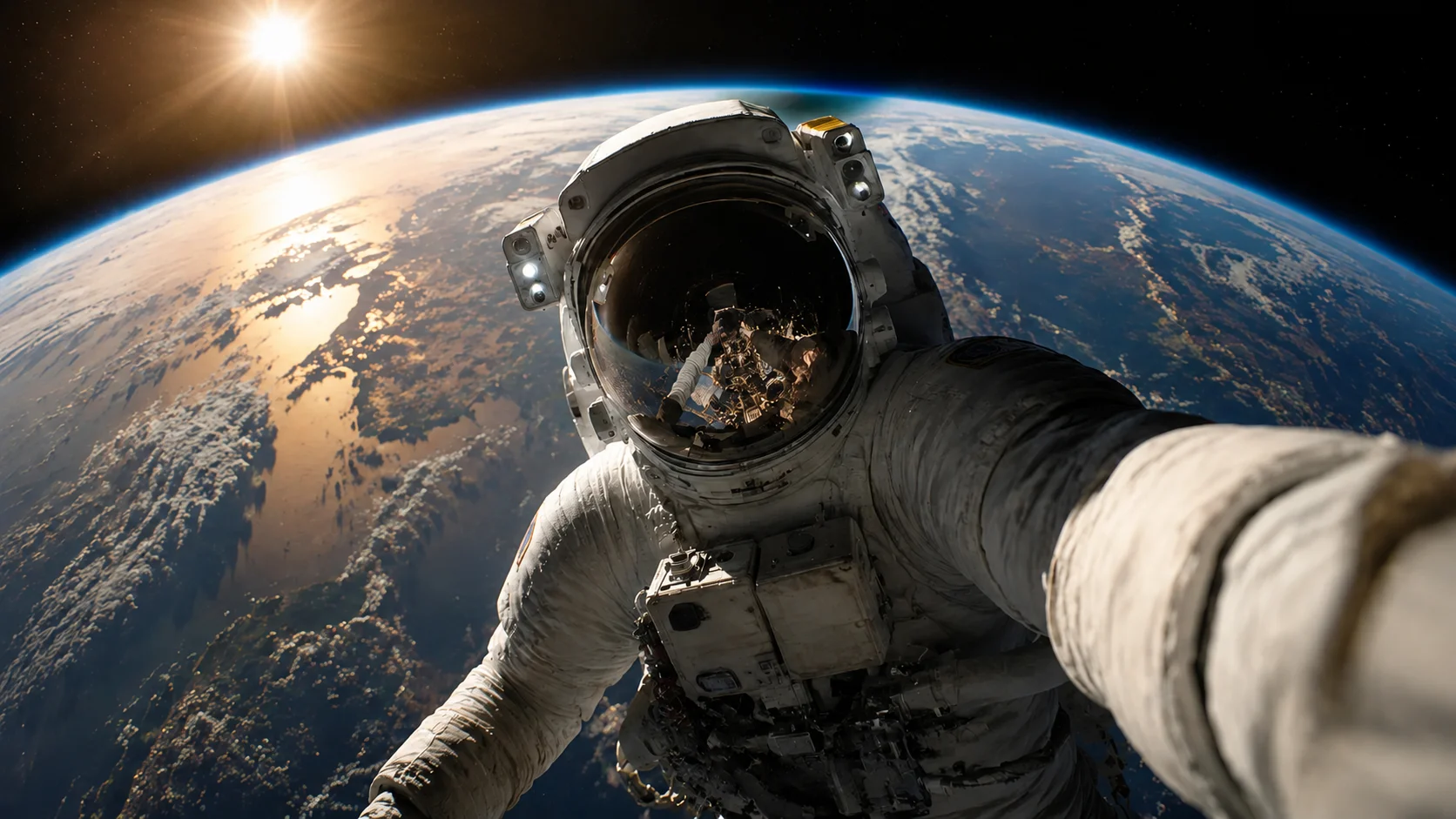
処理後Cinematic AI clip - after
もっと自然な動画に仕上げますか?AI 処理でぼかしなし、画質低下なし。
無料で開始
処理前Vertical creator clip - before
処理後Vertical creator clip - after
もっと自然な動画に仕上げますか?AI 処理でぼかしなし、画質低下なし。
無料で開始

Authorized use only

This tool is designed for creators working with content they have legitimate rights to edit. Do not remove watermarks from videos you do not own or are not authorized to modify.

  • Your own AI generationsVideos you generated yourself using PixVerse AI, where you control the content and editing rights.
  • Licensed contentFootage obtained under a license that permits derivative editing, including watermark removal.
  • Social media repurposingReusing your own PixVerse-generated clips across TikTok, Instagram Reels, or YouTube Shorts without the platform watermark.
  • Educational and review useRemoving watermarks for commentary, reviews, or academic analysis of AI-generated video tools, with proper attribution.

主要な動画形式とデバイスに対応

スマホやPCのブラウザから、MP4、MOV、WebM などの形式をアップロードできます。

  • Video formats: MP4, MOV, AVI, WebM, and MKV — all common container types supported.
  • PixVerse typically exports MP4 files, which are the recommended input format.
  • Resolution: best results at 720p and above. Higher-resolution uploads give the AI more pixel data for background reconstruction.
  • Duration: short clips (5–15 seconds, typical PixVerse output) process fastest. Longer videos are supported but take proportionally more time.

複数プラットフォームでの再利用に

自分のショート動画、広告素材、チュートリアル、許可済み素材をきれいに整えられます。

  • Browser-based: open UnmarkAI in any modern browser — Chrome, Safari, Firefox, Edge. No extension, plugin, or desktop software required.
  • Works on already-exported videos: if you already downloaded a watermarked PixVerse clip, upload it directly. No need to regenerate the video.
  • Mobile-friendly: the upload, select, preview, and download workflow works on phones and tablets as well as desktop.
  • No account required to try: upload a short clip and preview the result before committing to a paid plan.

編集権限のある動画だけを処理

所有、ライセンス、または明確な許可のある動画だけに使用してください。

  • Videos you generated yourself: you created the content using your own PixVerse account and prompts, giving you a legitimate interest in editing the output.
  • Licensed or authorized content: where the license or permission explicitly permits derivative edits, including watermark removal.
  • Cross-platform republishing: removing the PixVerse watermark from your own AI-generated clips to publish them on TikTok, YouTube, or Instagram without third-party branding.
  • Do not remove watermarks from videos you do not own or are not authorized to edit. Doing so may violate copyright law and PixVerse's terms of service.

AI 処理が自然に見える理由

AI は周囲の映像から隠れた部分を補完し、ぼかしや貼り付けのような違和感を抑えます。

  • AI inpainting: removes the PixVerse.ai text and fills in the area with matching background detail — texture, color, and lighting are all reconstructed.
  • Cropping: cuts away the top-right portion of the frame where the PixVerse watermark sits, changing the aspect ratio and potentially cutting off visual elements near the edge.
  • Blurring: leaves a visible smudged patch in the top-right corner — immediately noticeable and unprofessional, especially on dark or gradient backgrounds.
  • Manual masking: requires frame-by-frame editing in tools like After Effects or Premiere Pro — time-consuming and often inconsistent for semi-transparent watermarks.
信頼性

権利のある動画編集のために設計

UnmarkAI は、自分が所有する、ライセンスを持つ、または編集許可のある動画を扱うクリエイターやチーム向けのサービスです。

権利に配慮したワークフローダウンロード前に確認安全な処理明確な利用ポリシー

よくある質問

安全で高品質な動画クリーンアップに関する実用的な回答です。

どんな動画に向いていますか?

自分の動画、ライセンス済み素材、ブランド素材、社内資料など、編集権限のある動画に向いています。

How do I remove the PixVerse watermark from my video?

Upload your PixVerse-generated video to UnmarkAI, let the AI detect the PixVerse.ai watermark in the top-right corner, then preview and download the clean version. The entire process runs in your browser — no app installation required.

What does the PixVerse watermark look like?

The PixVerse watermark is a semi-transparent white "PixVerse.ai" text positioned in the top-right corner of the video frame. It is rendered directly into the pixel data on free-tier exports and removed automatically on paid PixVerse plans.

Does PixVerse watermark all AI-generated videos?

PixVerse adds the watermark to free-tier (Basic plan) video exports. Paid plans (Standard and above) produce watermark-free videos and unlock higher resolutions. Check the PixVerse pricing page for current plan details.

動画をきれいに整えますか?

不要な透かしや文字を減らし、投稿や納品に使いやすい動画へ。

今すぐ無料で始める

登録で 10 クレジット付与 · クレジットカード不要